Prime Roofing Services Pro Documentation
- Introduction
Welcome to the documentation for the Prime Roofing Services Pro Theme! This guide is designed to walk you through the installation, setup, customization, and use of the theme. Whether you're a beginner or an experienced WordPress user, this documentation will help you get the most out of the theme.
Documentation Structure
- Introduction: Get an overview of our theme, its features, and the structure of this documentation.
- Installation: Learn how to install and activate the theme on your WordPress website.
- Setup: Follow step-by-step instructions to set up your website using our theme, including configuring theme options, creating pages, and setting up widgets.
- Customization: Explore the various customization options available, including theme customizer settings, page builder integration, and custom CSS.
- Support: Access resources and guidelines for getting support, including documentation, knowledge base, support forum, and contact information.
Feedback and Support
Your feedback is valuable to us! If you have any questions, suggestions, or issues related to our theme, feel free to reach out to our support team. We're here to help you make the most of your WordPress website.
- About This Theme
Prime Roofing Services Pro Theme is a versatile and feature-rich WordPress theme designed to elevate your roofing business to new levels of professionalism and excellence. Crafted with meticulous attention to detail and a deep understanding of modern roofing industry needs, Prime Roofing Services Pro provides the perfect platform for showcasing your roofing services, projects, team, achievements, and expertise with style. It offers an ideal solution for roofing contractors and service providers looking to build a strong online presence and showcase their services with confidence.
- Key Features
- Beautiful design:
Prime Roofing Services Pro features a professional and purpose-driven design that puts your roofing services front and center. The clean and engaging layout ensures that visitors are immediately drawn to your roofing projects, services, and expertise
- Responsive and Mobile-Friendly:
Prime Roofing Services Pro is fully responsive and mobile-friendly, ensuring your website looks stunning and functions flawlessly on all devices, including smartphones, tablets, and desktops.
- Dedicated Support:
With our dedicated support team, you're never alone on your website-building journey. We provide comprehensive documentation, tutorials, and timely support to help you overcome any challenges and make the most out of Prime Roofing Services Pro
- One-Click Demo Import:
Get started quickly by importing our demo content with a single click. You can then customize and modify the content to suit your roofing business needs, showcase your projects, and highlight your services.
- Installing a theme with wordPress
Using the WordPress admin theme search feature is the simplest Shopby to deploy a free WordPress theme from the WordPress.orgs themes repository.
1. Click Dashbord  Appereance Themes
.png)
2. Click the Add New button at the top of the themes page after you've arrived there.
.jpg)
3. To upload a theme, click the button.
.PNG)
4. Select your Soccer Sports Club Pro theme by clicking the Browser button, and then click on install button.
.PNG)
5. If you are not able to see the posttypes then you have to manually active the "Soccer Sports Club Pro Posttypes" by going in to the plugins option.
.PNG)
- FTP Installation for Theme
- Connect to your server via FTP after installing and configuring your FTP application. Navigate to the "wp-content" folder, then to the "themes" directory. Once there, upload the theme folder.
- Keep in mind that before using FTP to add a theme, the theme folder must be unzipped. Once the theme has been uploaded, go to your WordPress admin area and select **Appearance > Themes**.
- In the Themes section, the uploaded theme should appear. Hover your mouse over the theme and click the "Activate" button to successfully install and activate it.
- Color palette for sections
The method of changing the color is quite simple. You can easily change the color of headings (h1, h2, ... h6), paragraphs (p), and buttons with just a few clicks.
Depending on the available options in each area, you can change the color scheme for the headings, title/text, paragraphs, button text, and button background.

- Configure the Template for the Home Page
Configure the home Page template
Set up your home page by following these instructions.
1. To set a template, create a page: choose "Dashboard" "Include
a New Page"
You can label it anything you choose, such as "home." then pick the "home-page" template from the template menu.
.PNG)
2. Configure the main page to: Open Settings Reading.
Make the home
page the
static front page display.
.PNG)
- Header Section Setup
.PNG)
1. In order to set the Header, adhere to the procedures below.
.PNG)
Select Header Section Settings from Go to Appearance then select Customize and then
select Theme Settings Header.
.PNG)
The following sections are included in the Header Section customization:
- Section marked "Enable/Disable"
- Logo image
- Depending on the content, different font settings.
- Slider Section Setup
SELECT Dashboard Theme Settings Sliders Section under
Appearance.
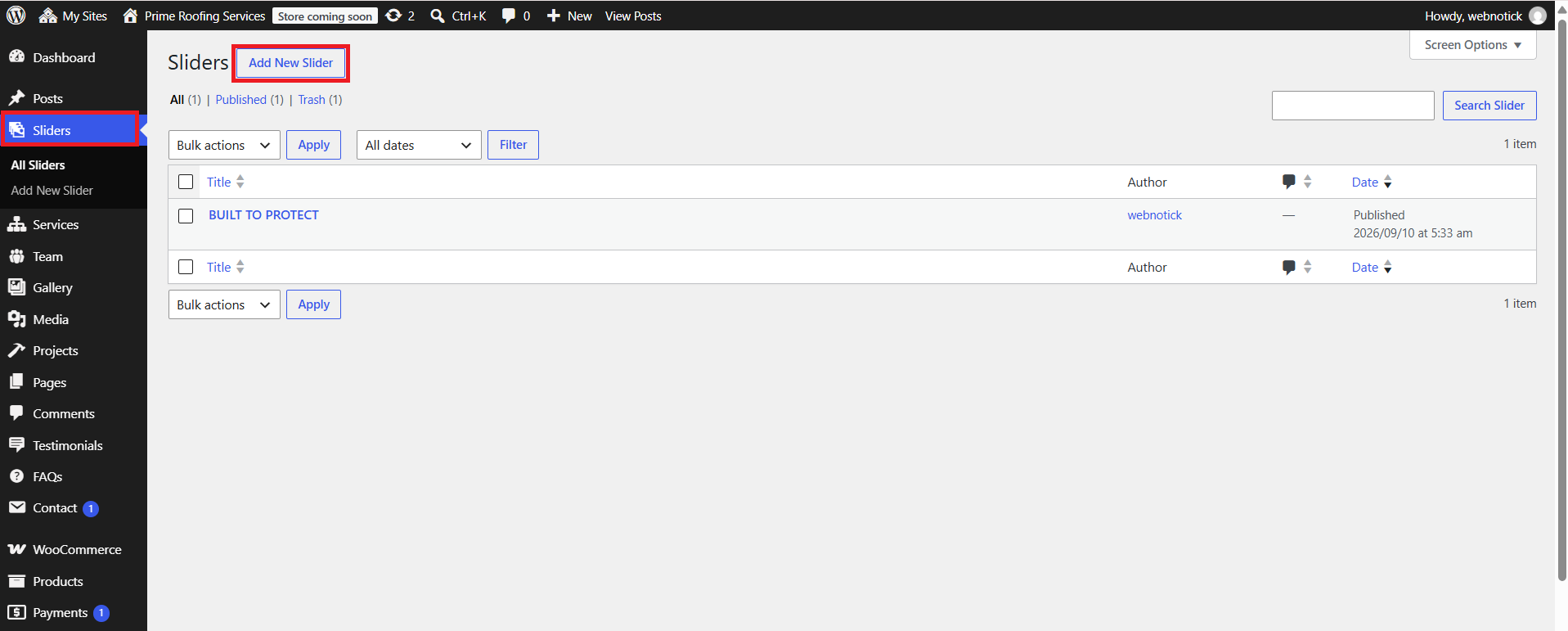
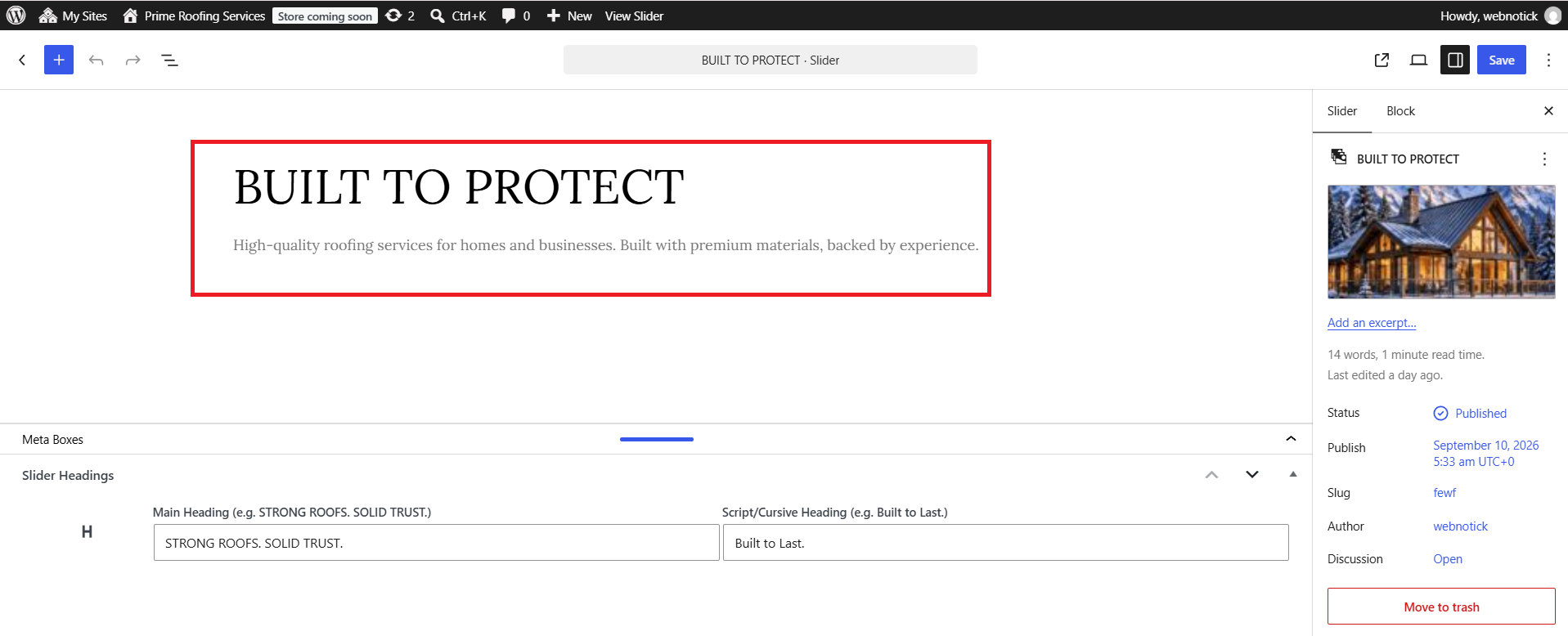
In order to set the Header, adhere to the procedures below.
Select slider Section Settings from Go to Appearance then select Customize and then
select Theme Settings Slider.
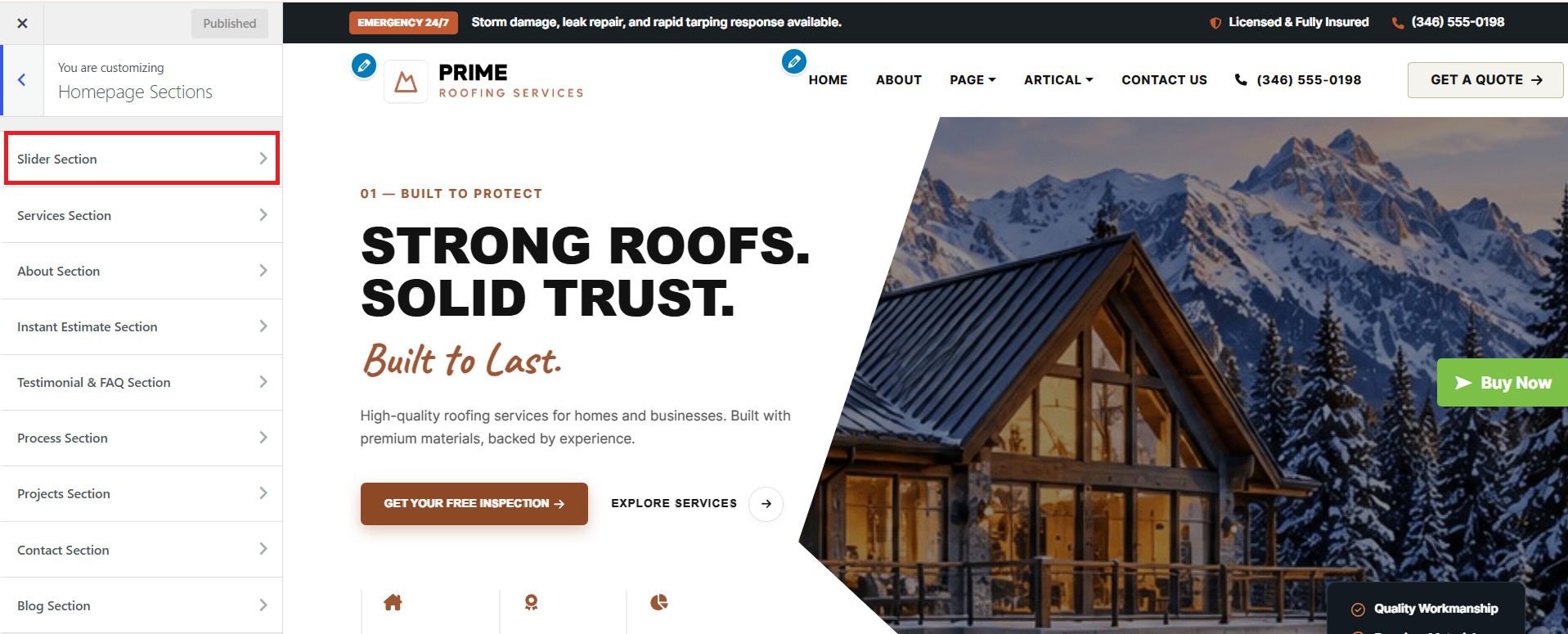
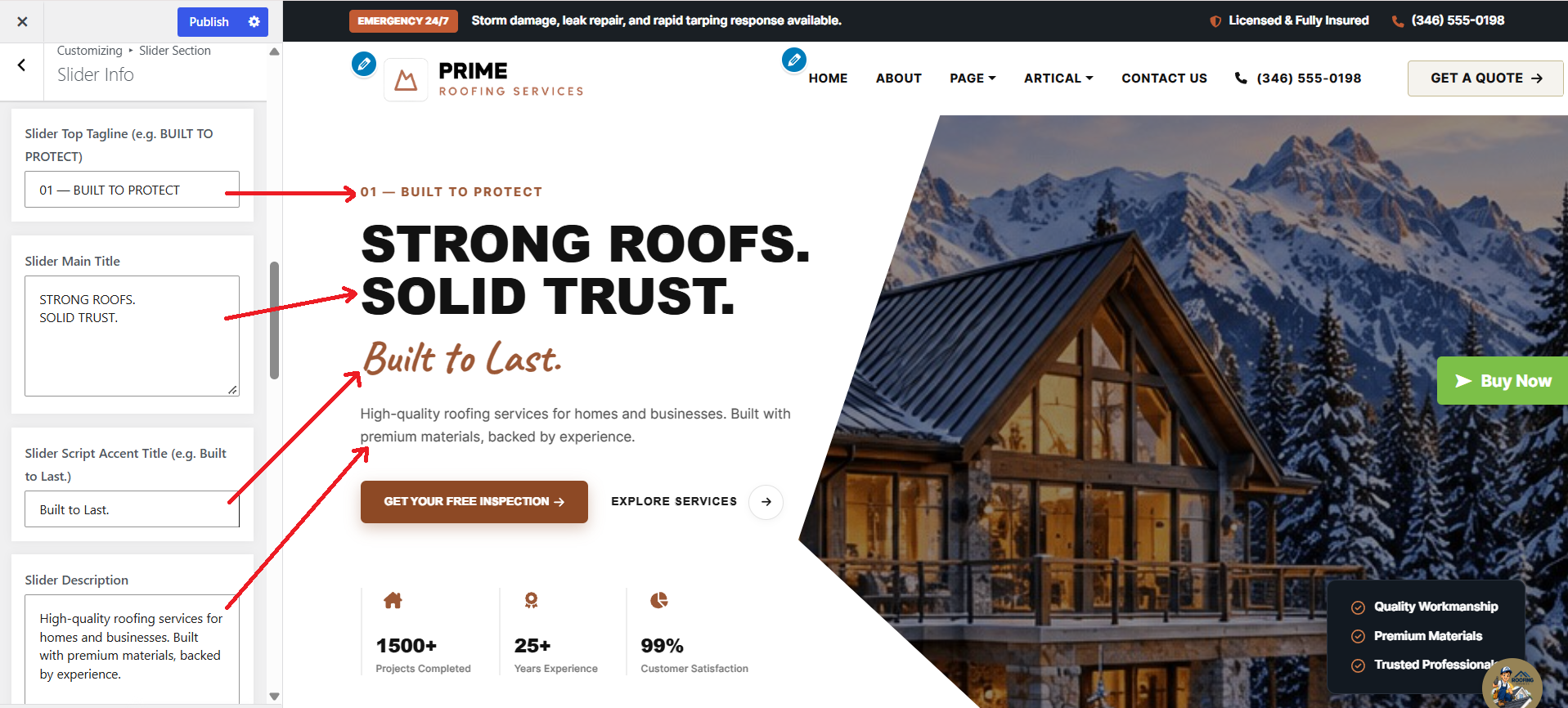
In this area, you can customize the slider's image, title, and description. You can also adjust the number of slides you want. Additionally, options are available to change the font family, font weight, font size, and colors of the headings and subheadings. You can also configure the navigation arrows and select the number of slides you prefer.
- Service Section Setup
SELECT Dashboard Theme Settings Service Section under
Appearance.
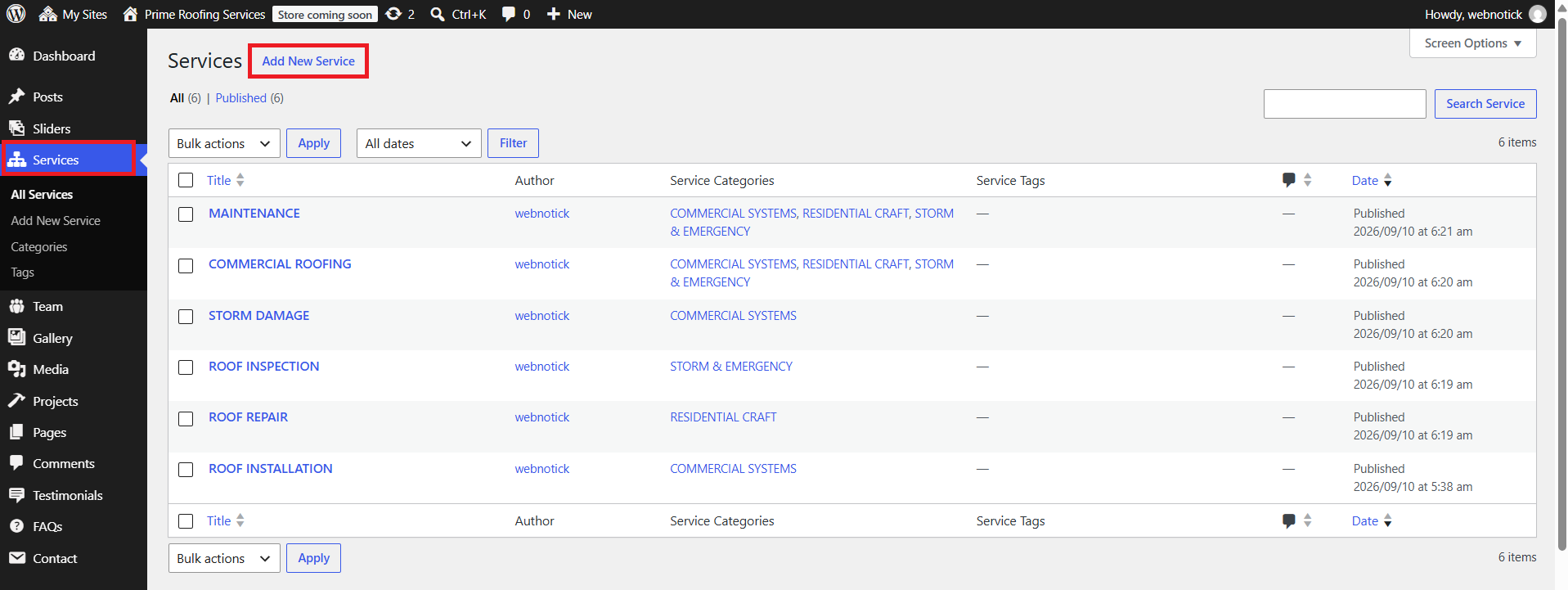
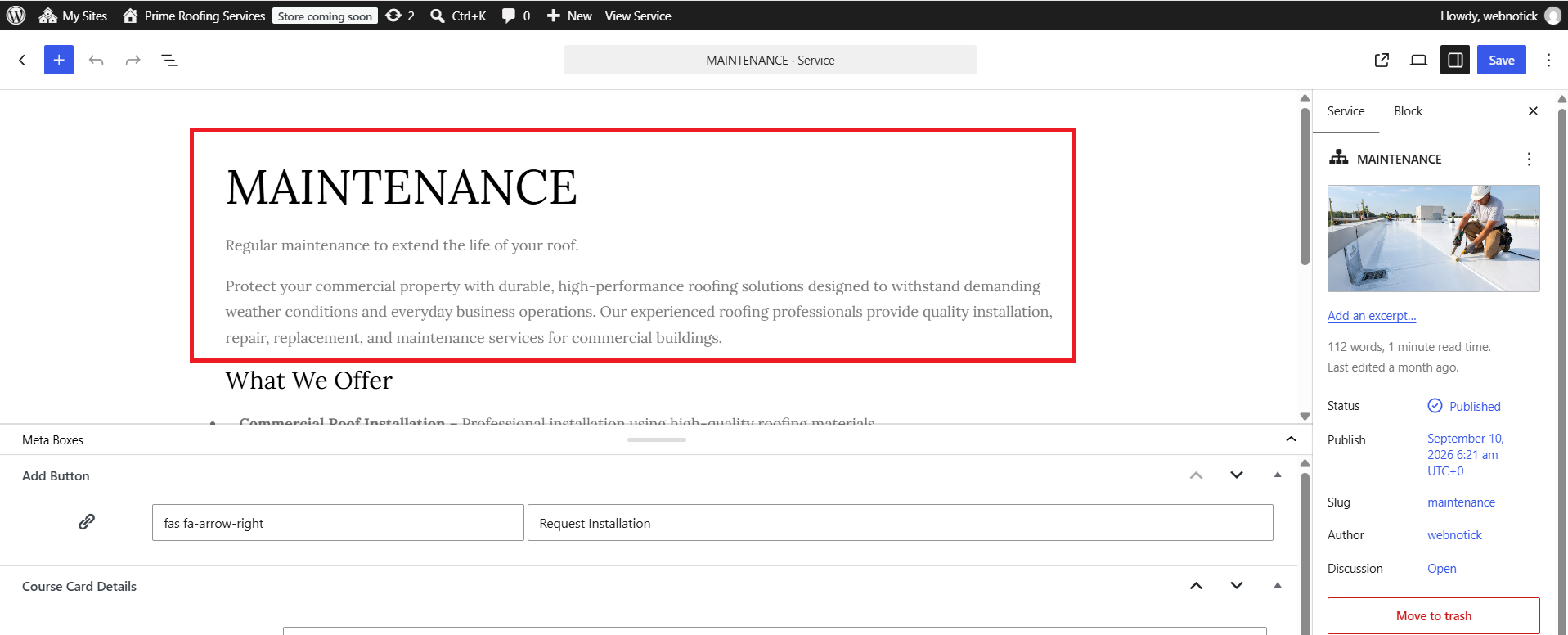
SELECT Customize Theme Settings Service Section under
Appearance.
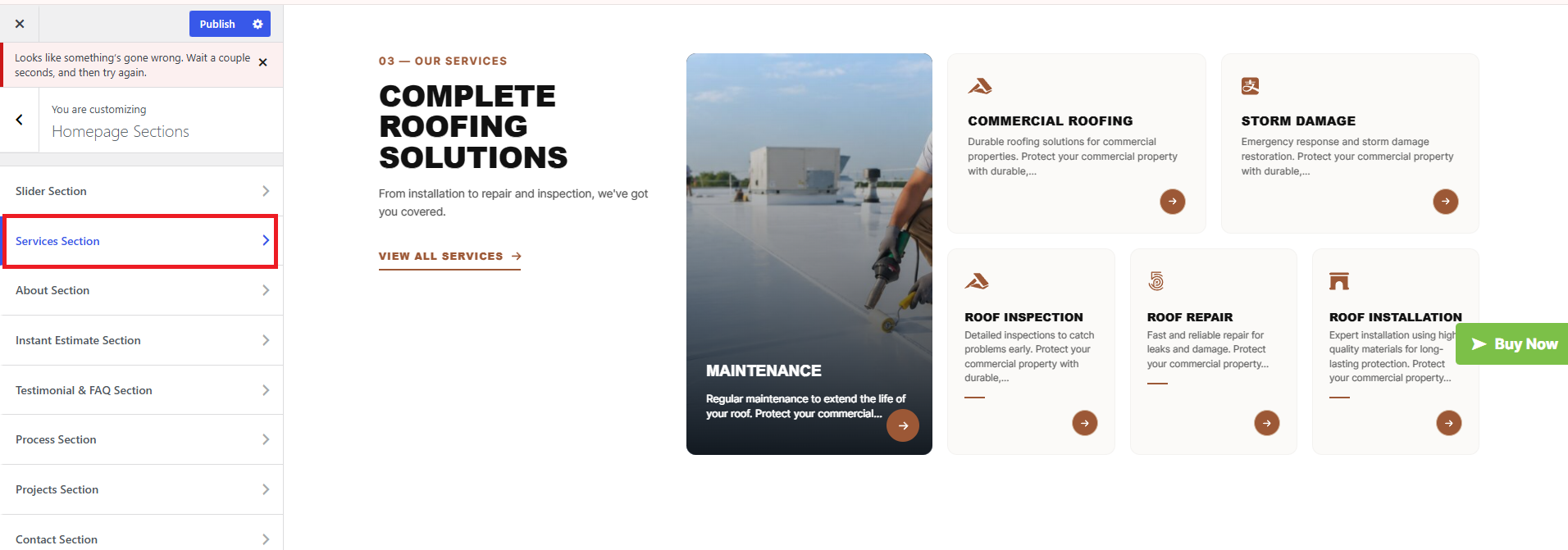
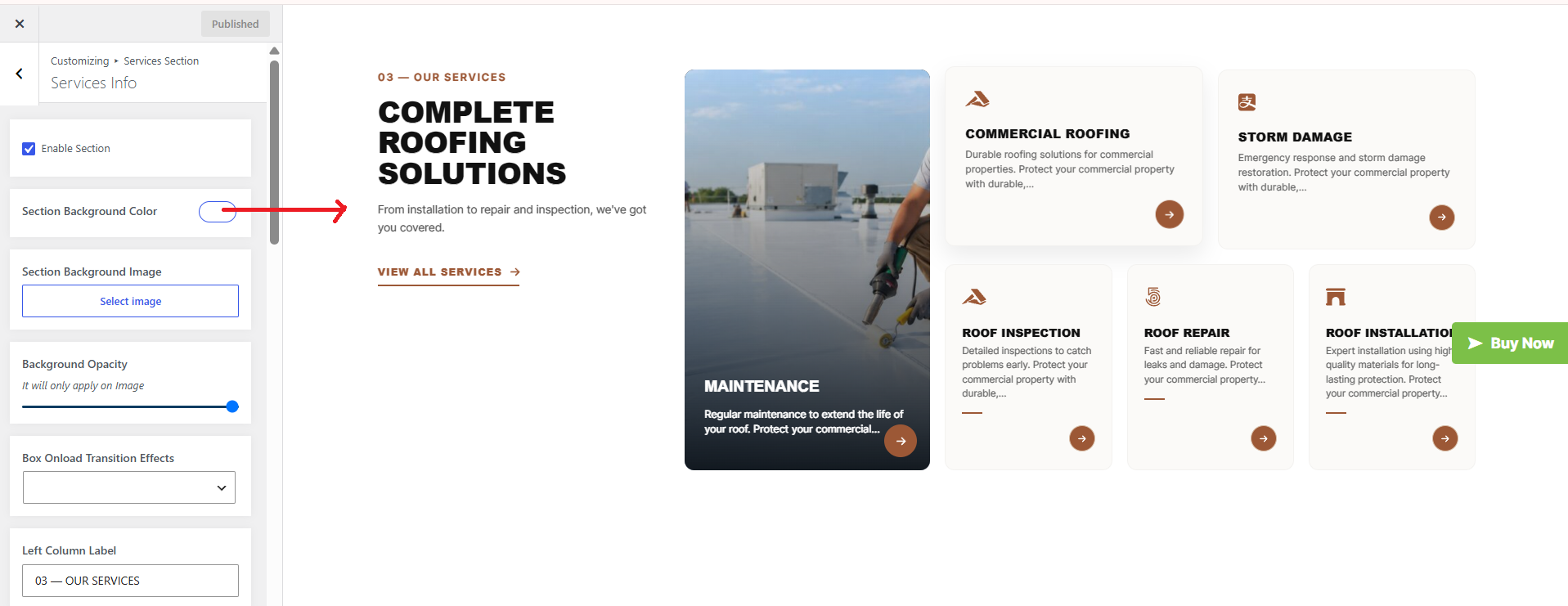
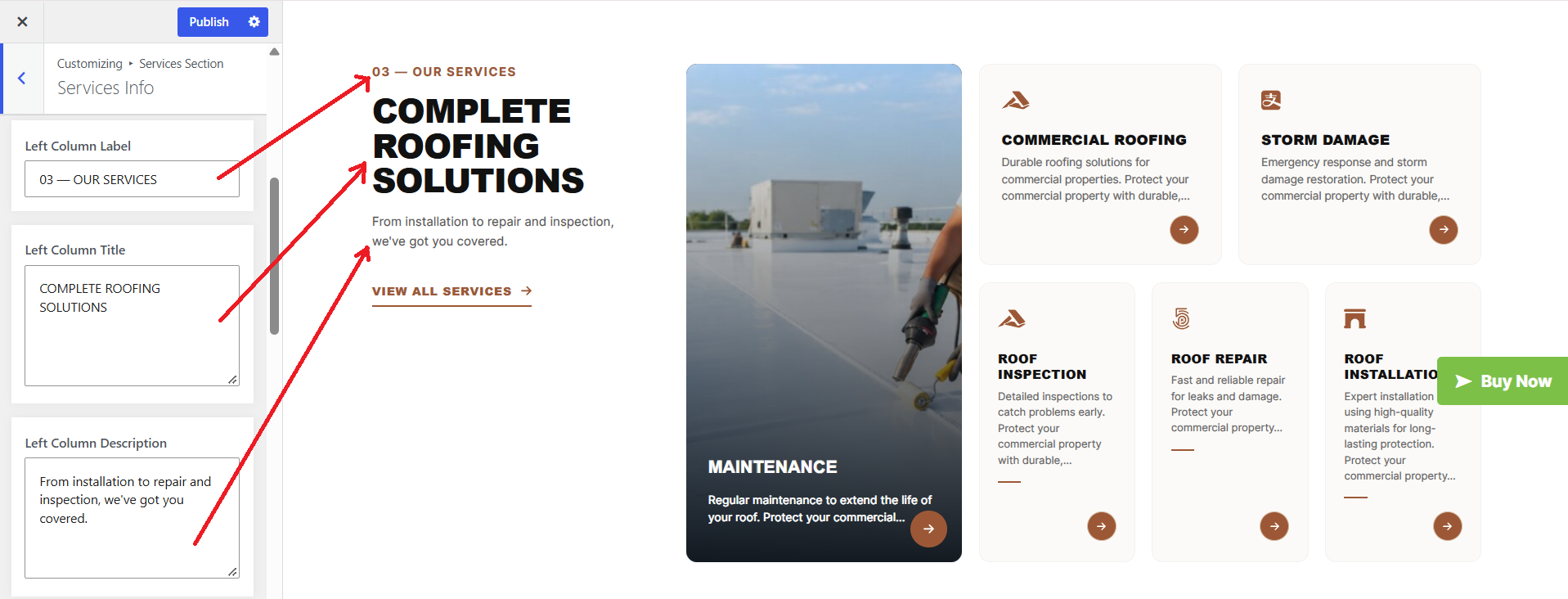
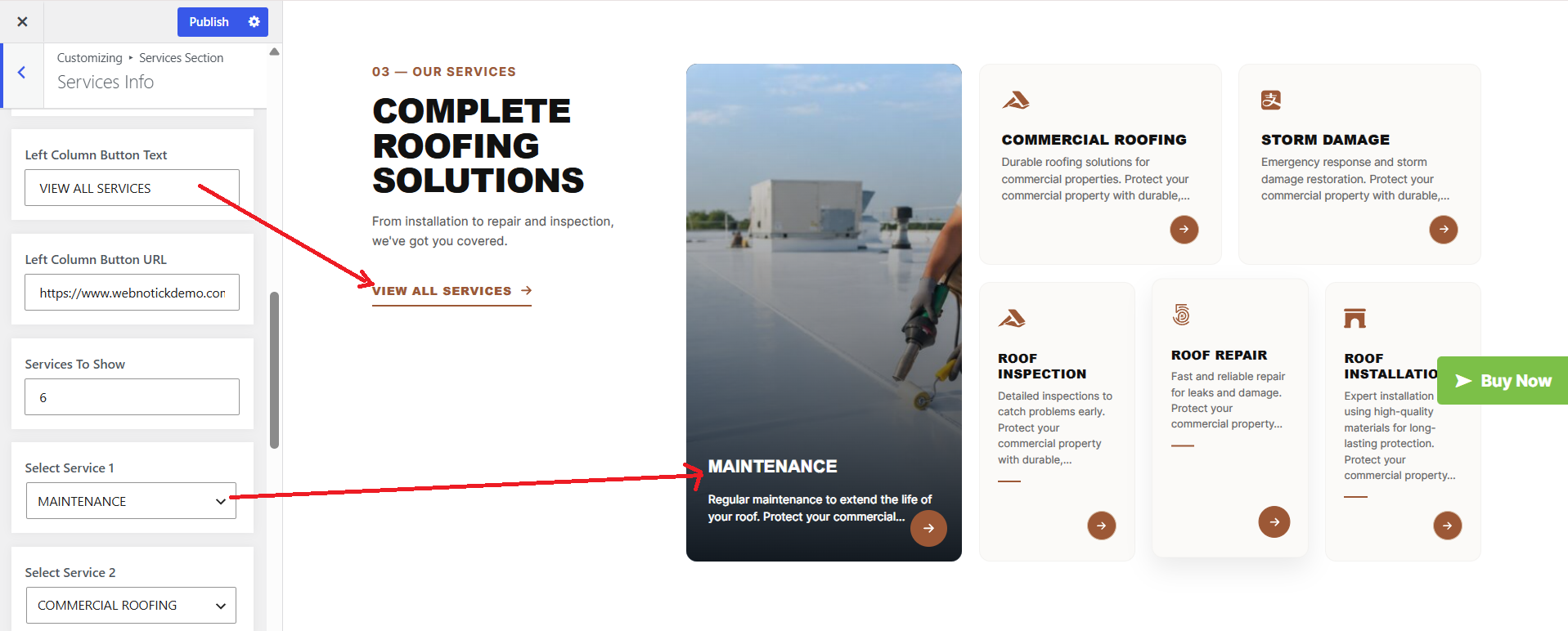
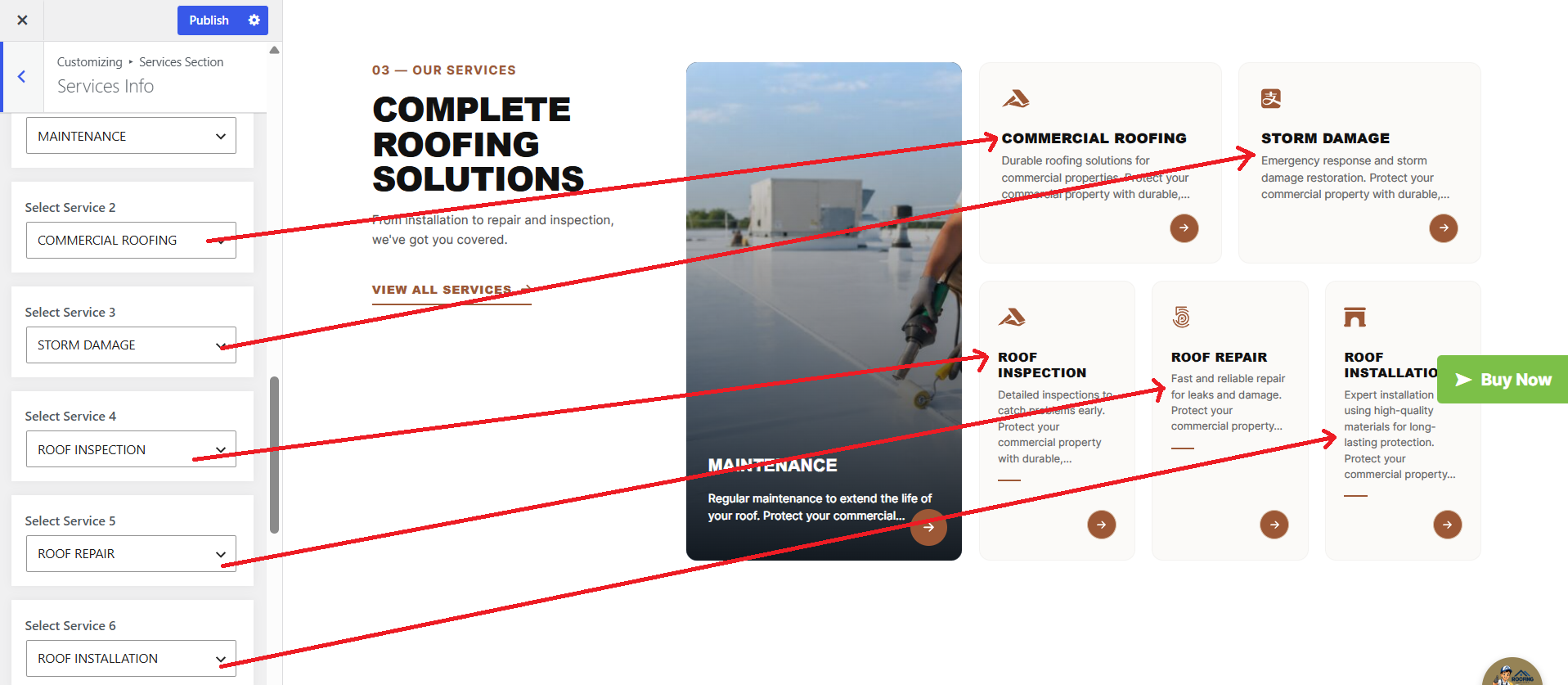
The following sections are included in the Service Section customization:
- Option to "Enable/Disable" the section
- Background color or background image
- Dynamic images
- Dynamic content
- Customizable font settings based on the content
- Font and color settings available for the active state as well.
- About Us Section Setup
SELECT Customize Theme Settings About Us Section under
Appearance.
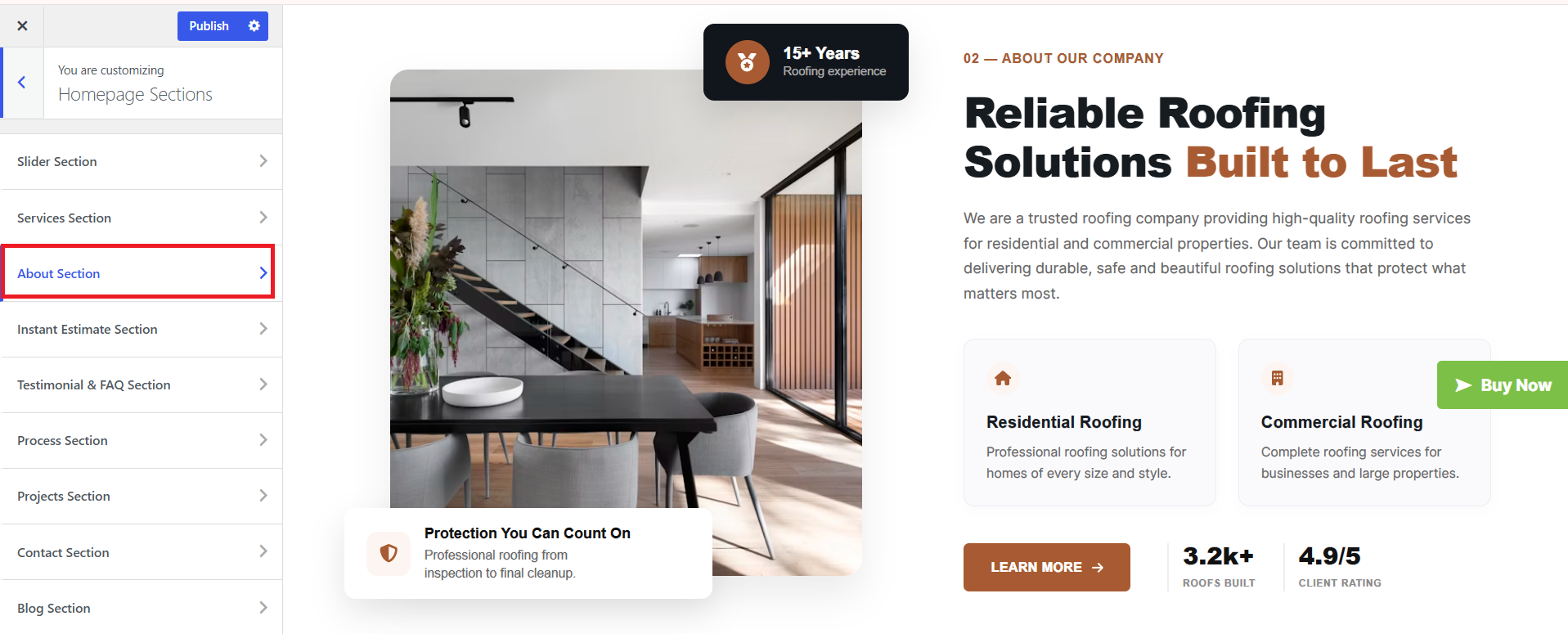
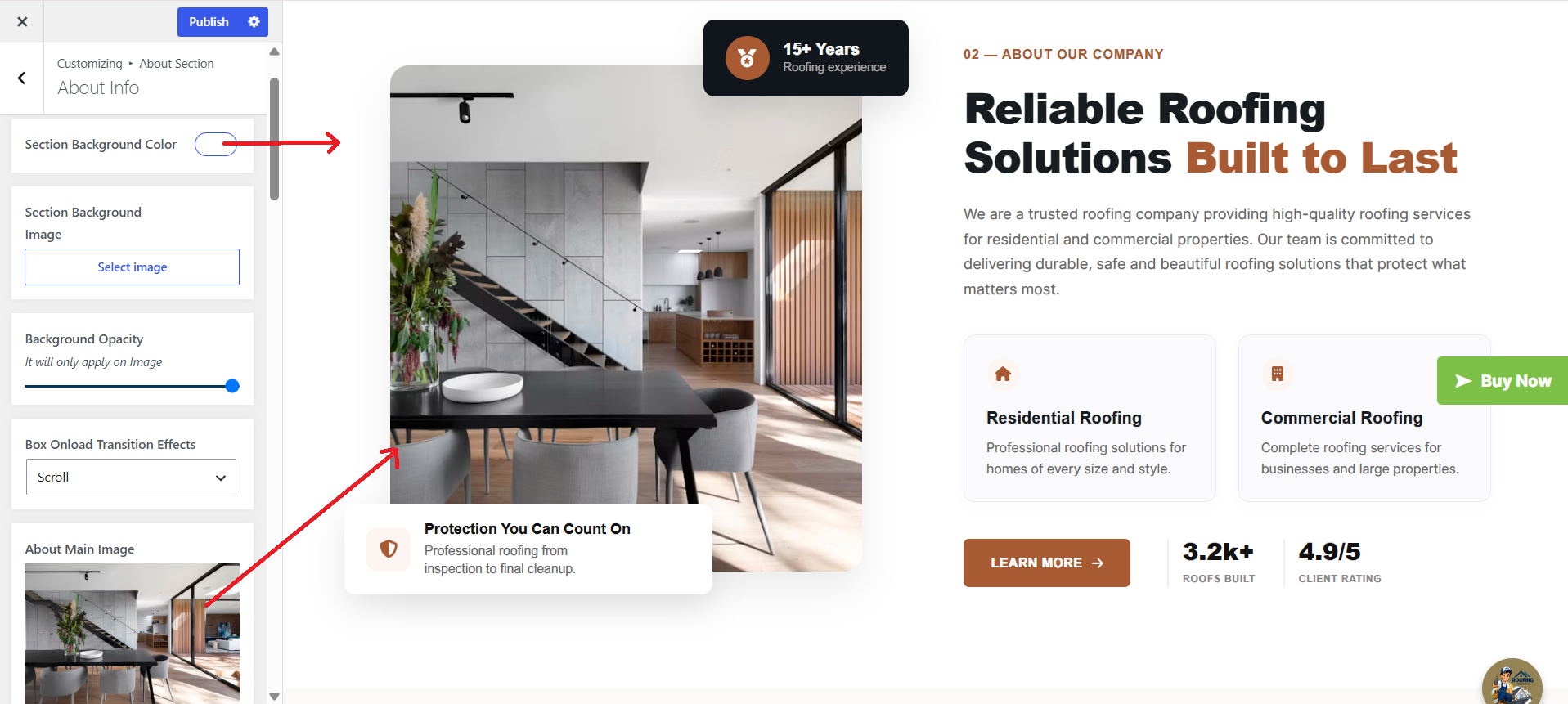
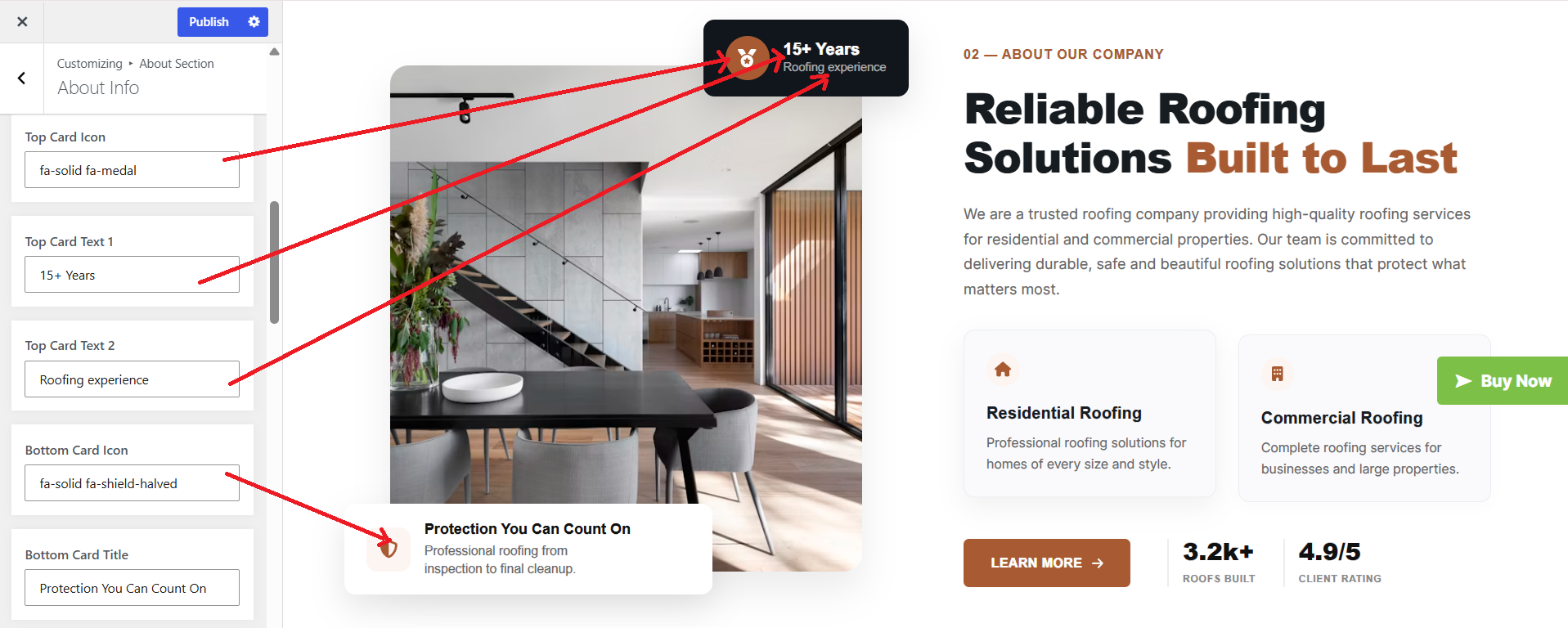
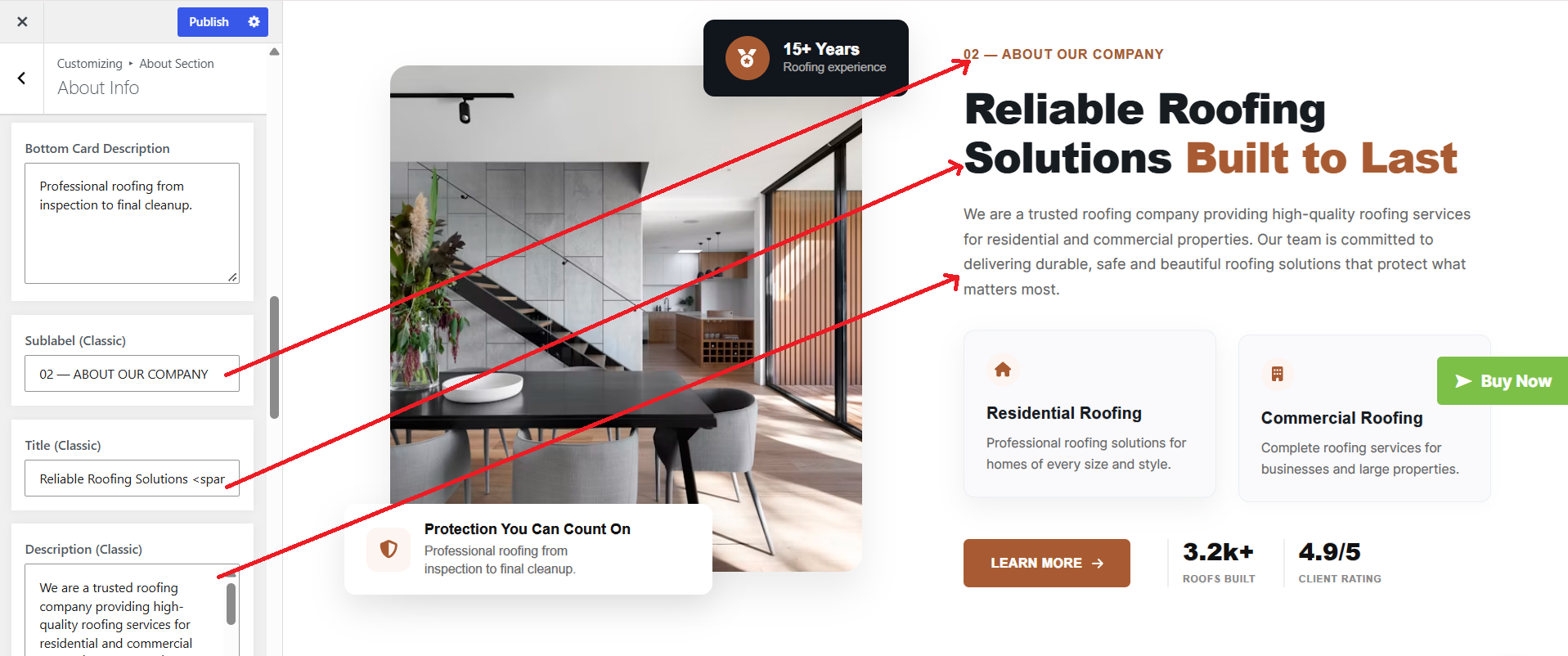

The following sections are included in the About Us Section customization:
- Option to "Enable/Disable" the section
- Background color or background image
- Dynamic images
- Dynamic content
- Customizable font settings based on the content
- Font and color settings available for the active state as well.
- Instant Estimate Section Setup
SELECT Customize Theme Settings Instant Estimate Section under
Appearance.
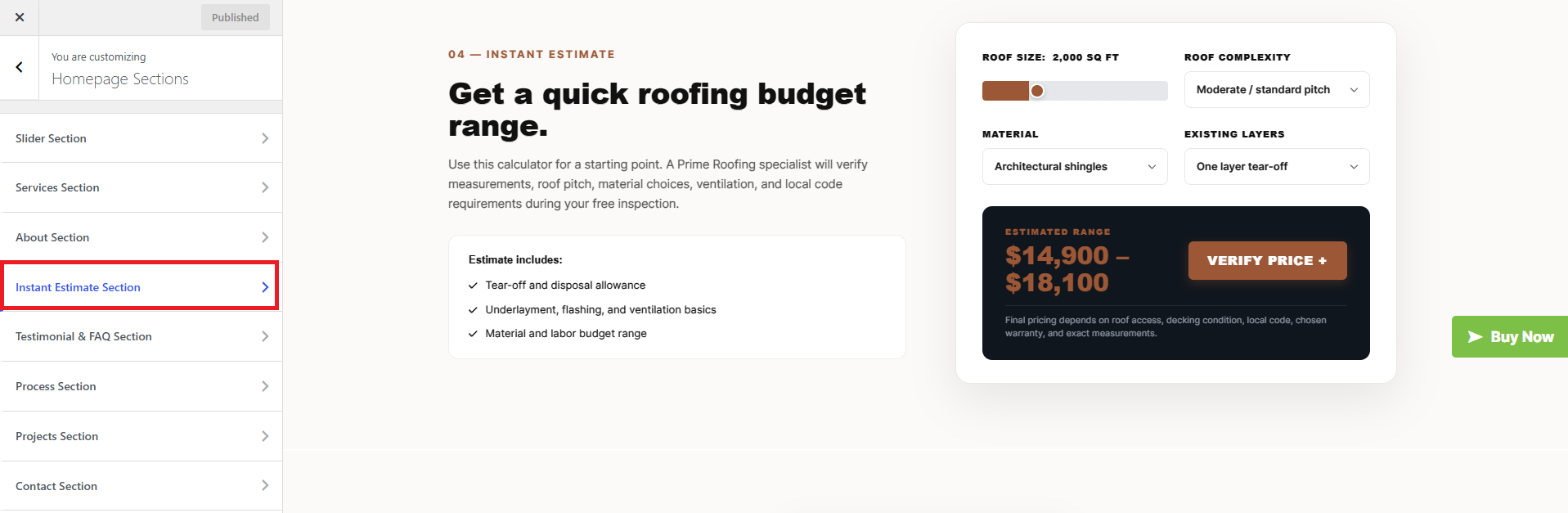
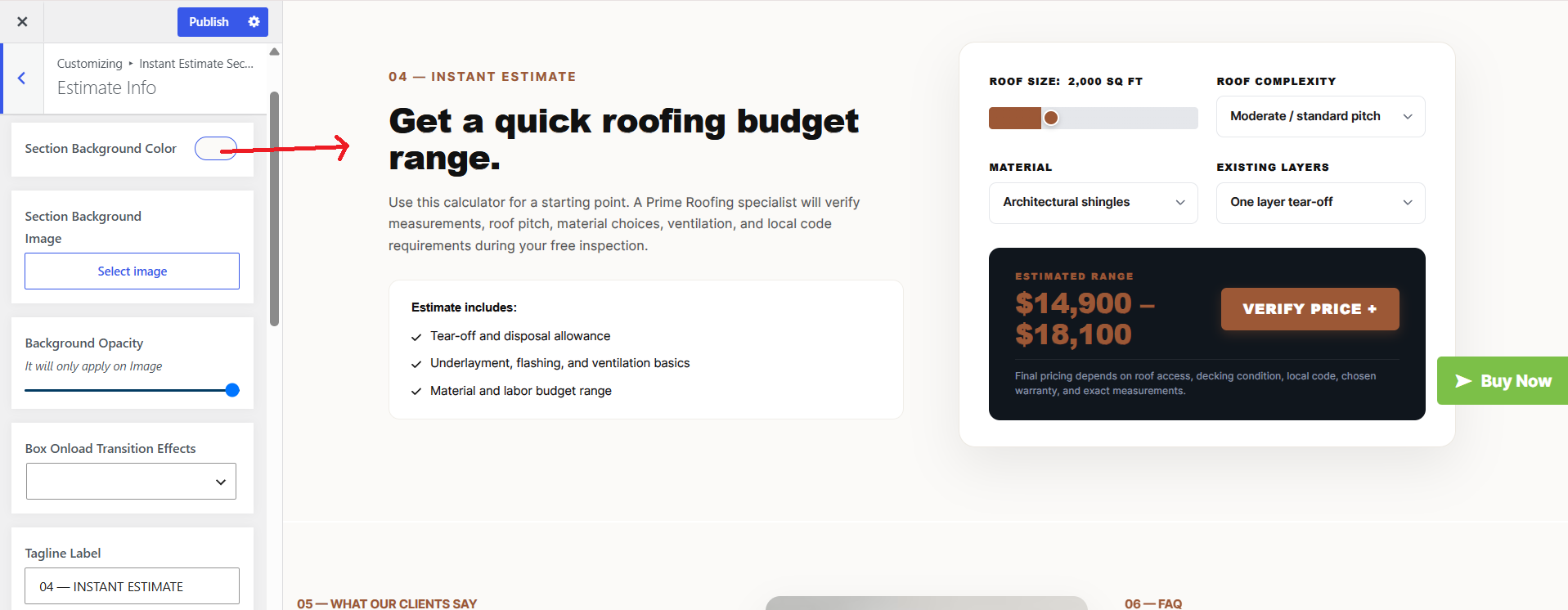
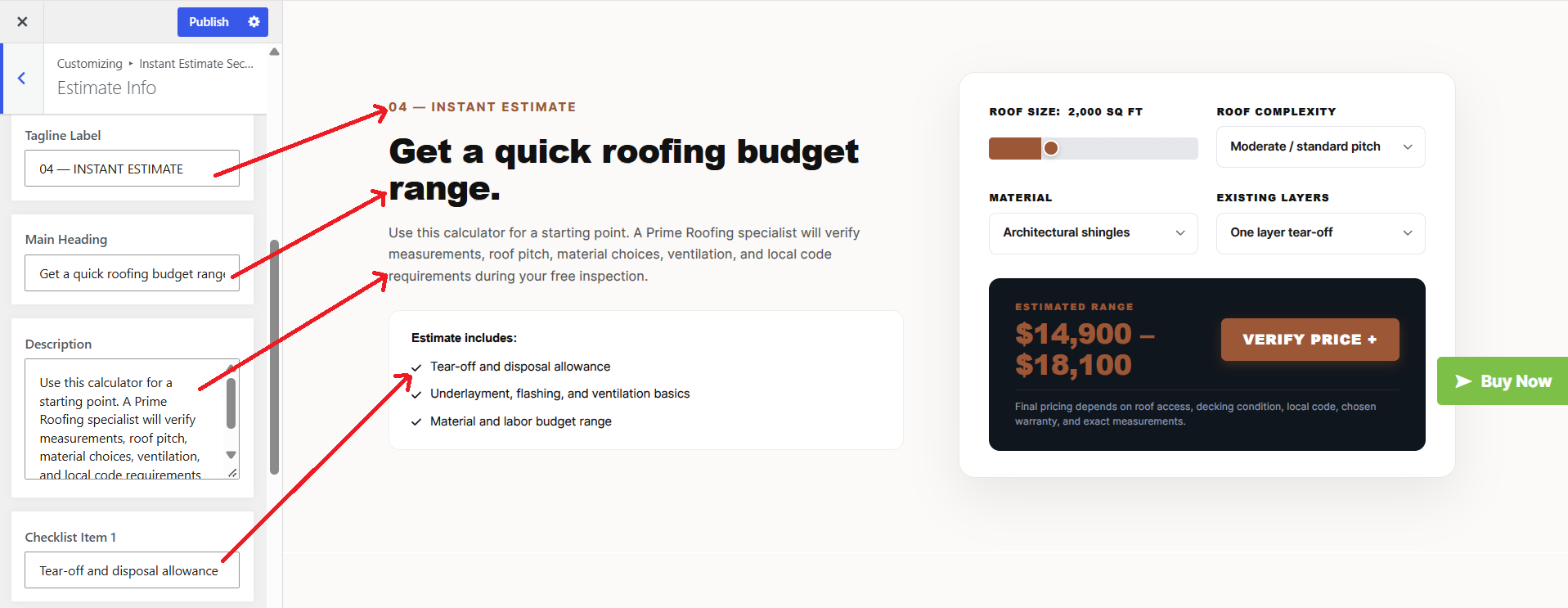
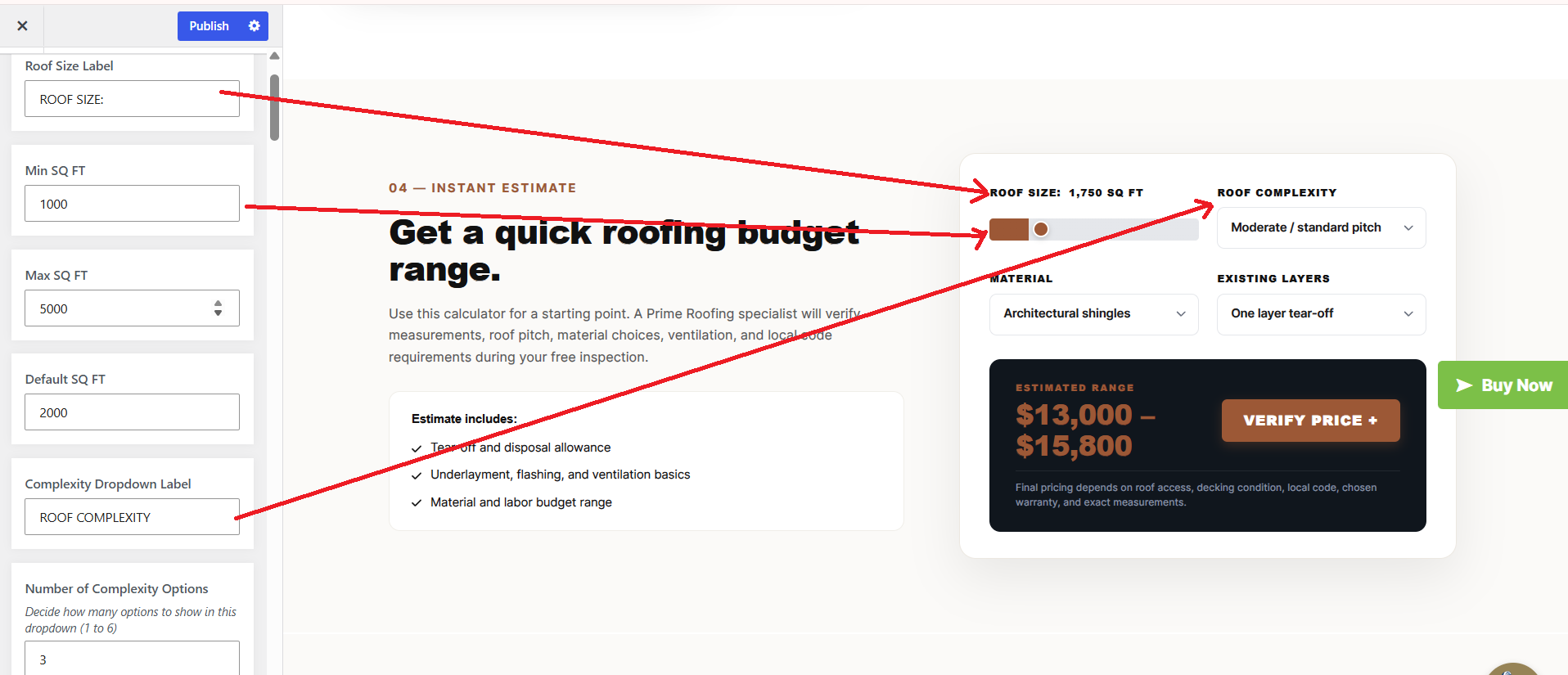
The following sections are included in the Instat Estimate Section customization:
- Option to "Enable/Disable" the section
- Background color or background image
-
Dynamic images
- Dynamic content
- Customizable font settings based on the
content
-
Font and color settings available for the active state as well.
- Project Section Setup
SELECT Dashboard Theme Settings Project Section under
Appearance.
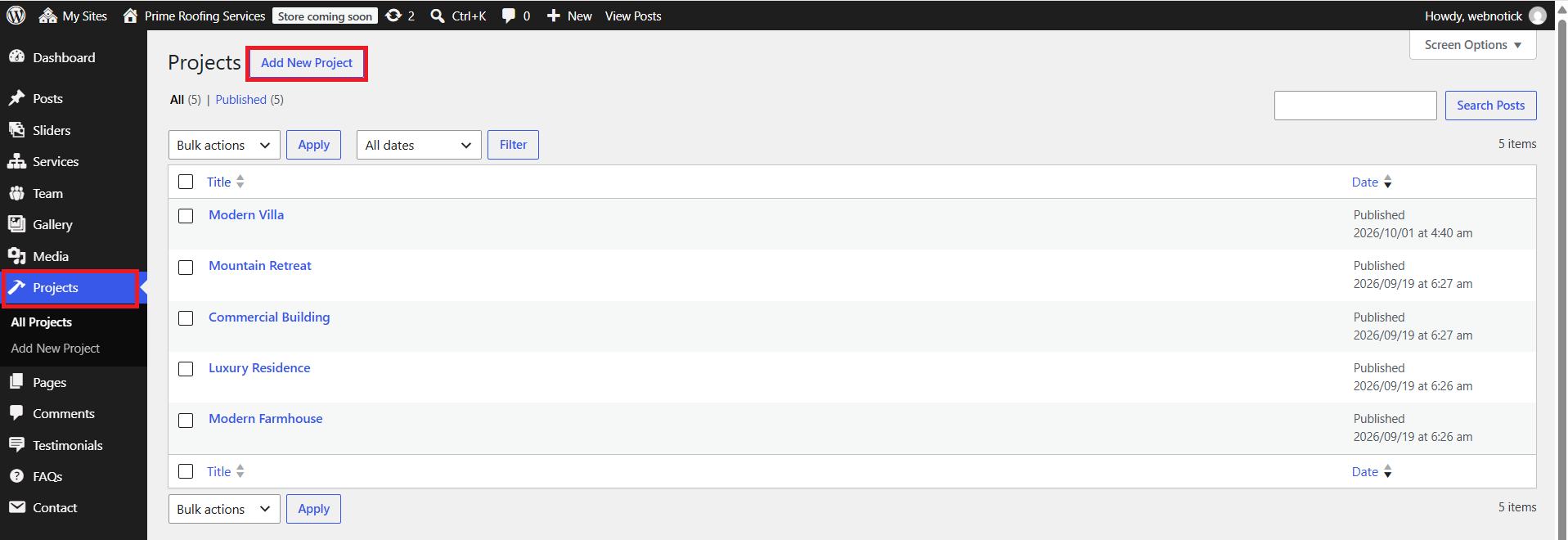
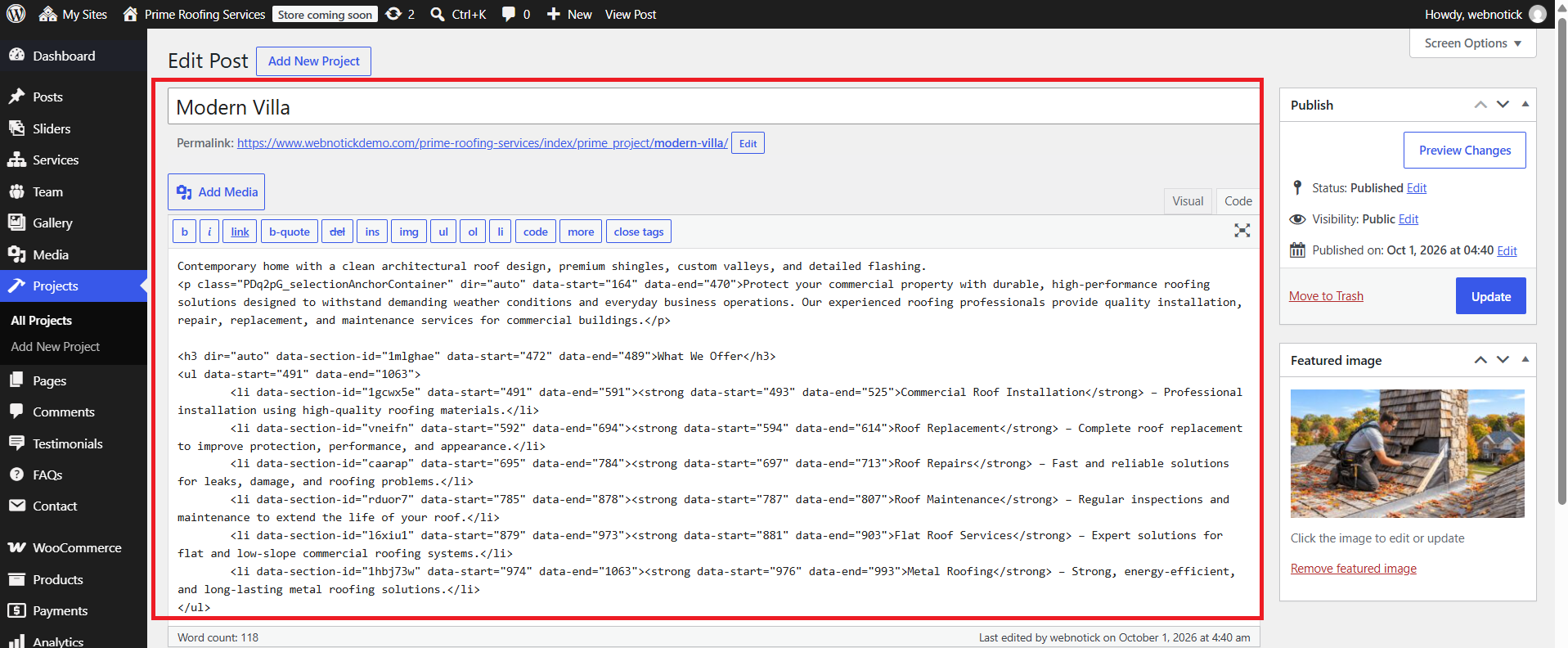
SELECT Customize Theme Settings Project Section under Appearance.
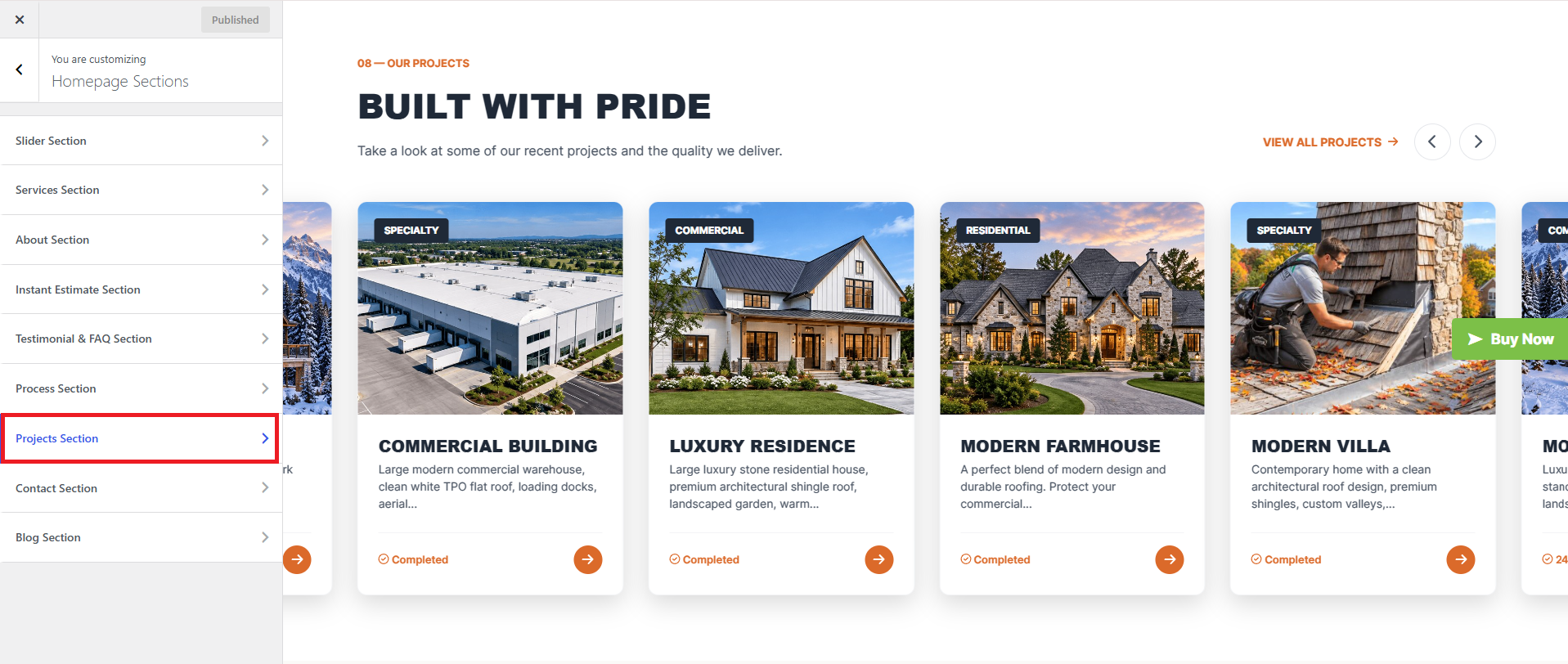
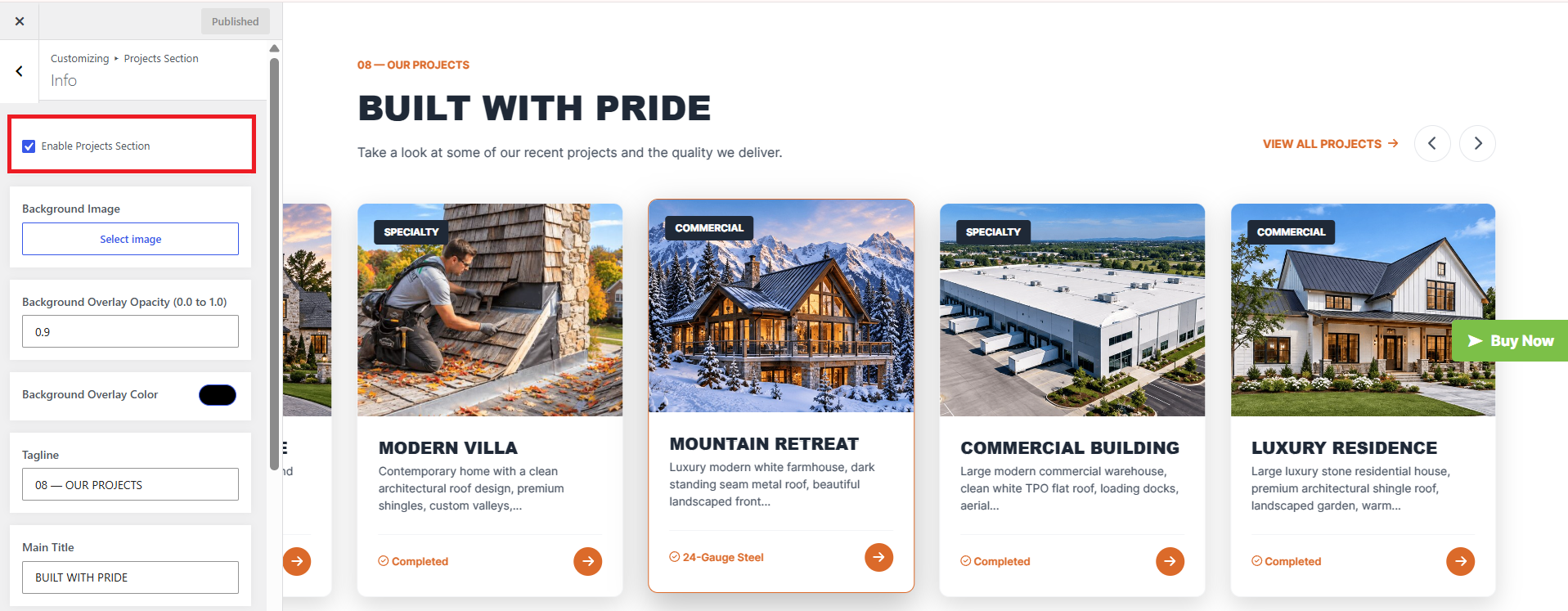
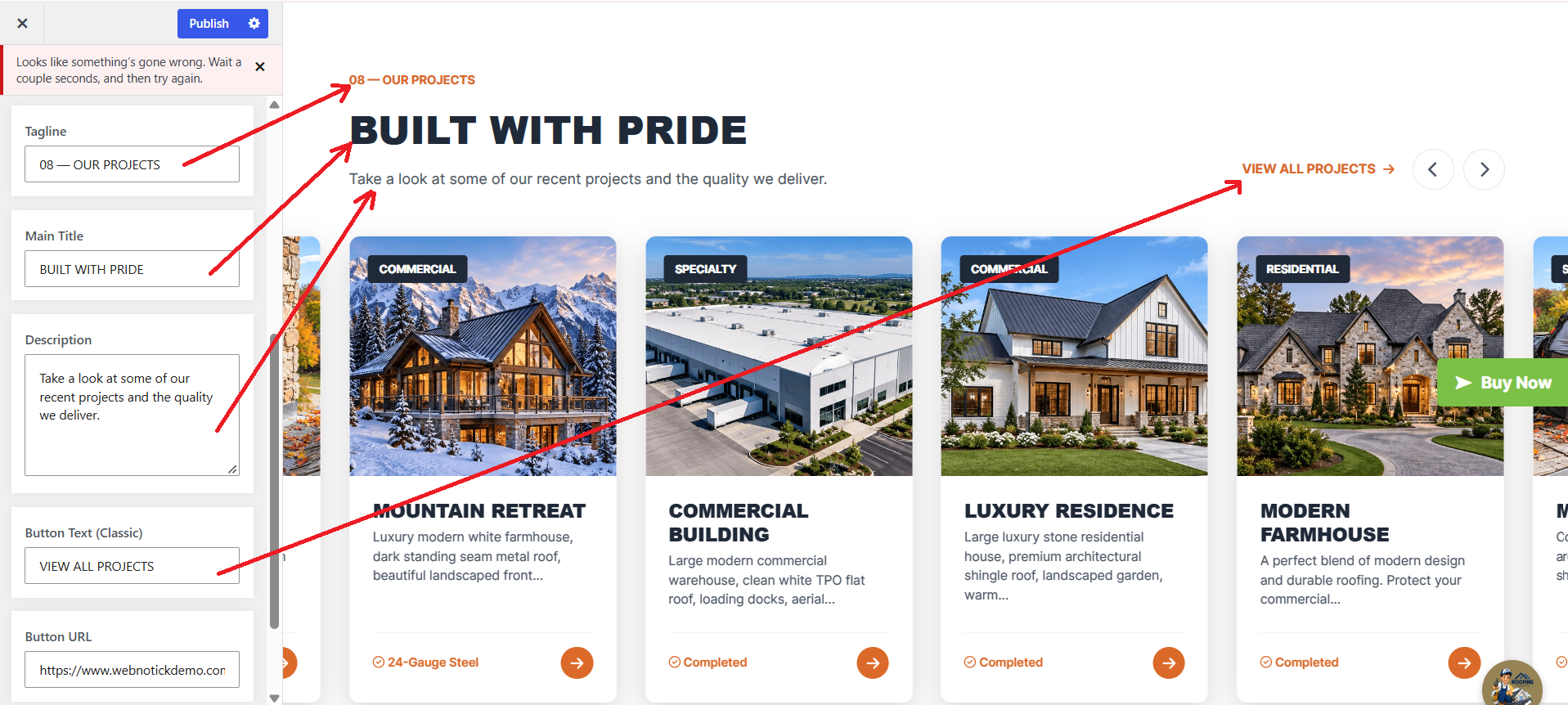
The following sections are included in the Project Section customization:
- Option to "Enable/Disable" the section
- Background color or background image
-
Dynamic images
- Dynamic content
- Customizable font settings based on the
content
-
Font and color settings available for the active state as well.
- Testimonial & FAQ Section Setup
SELECT Dashboard Theme Settings Testimonial & FAQ Section under
Appearance.
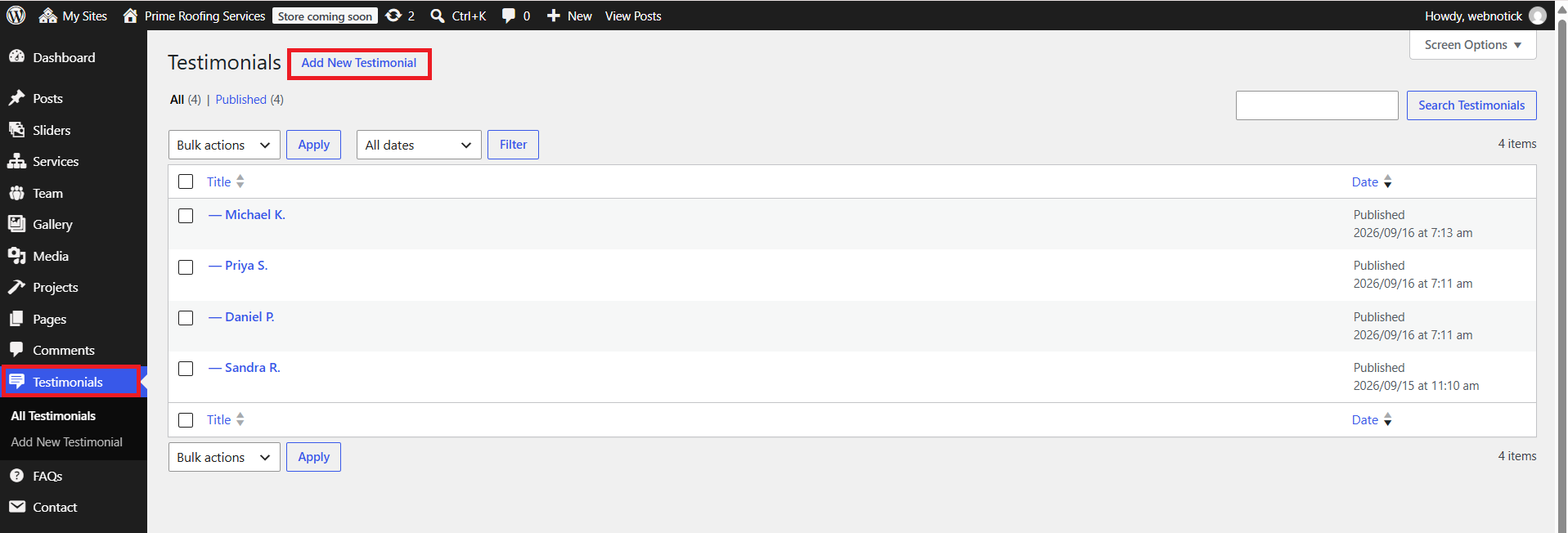
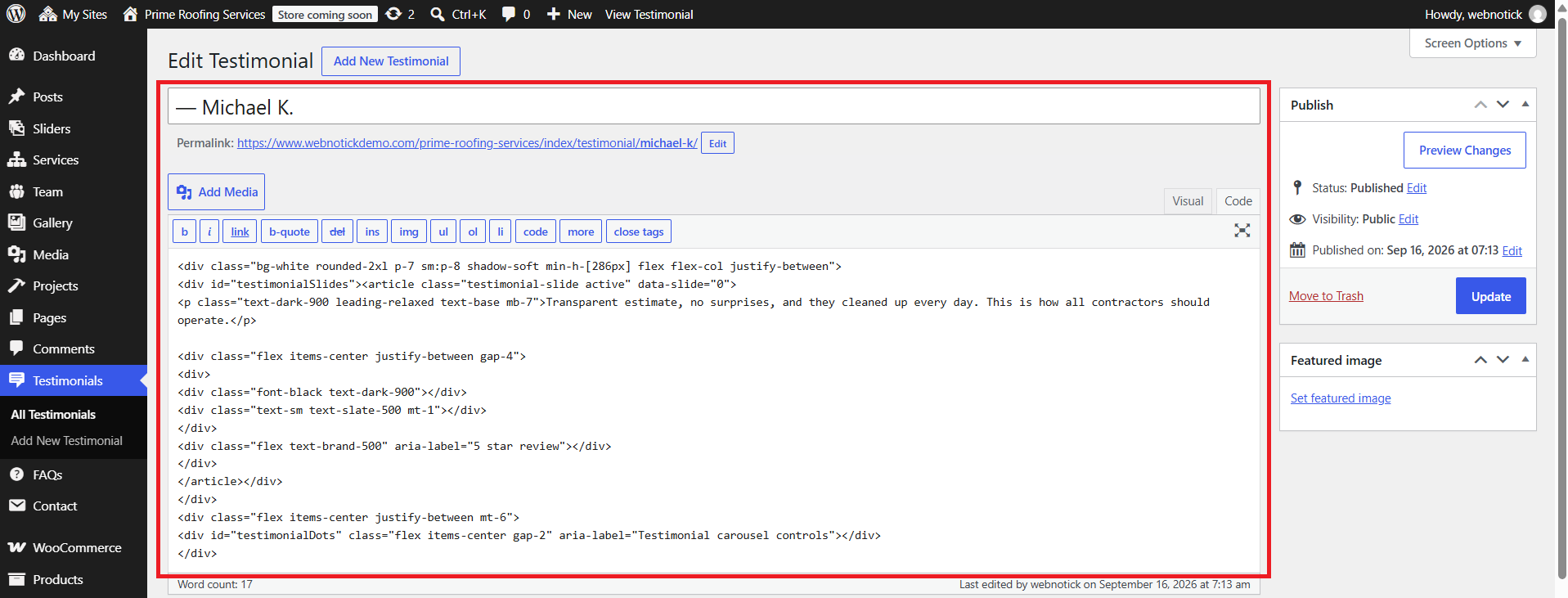
SELECT Customize Theme Settings Testimonial & FAQ Section under Appearance.
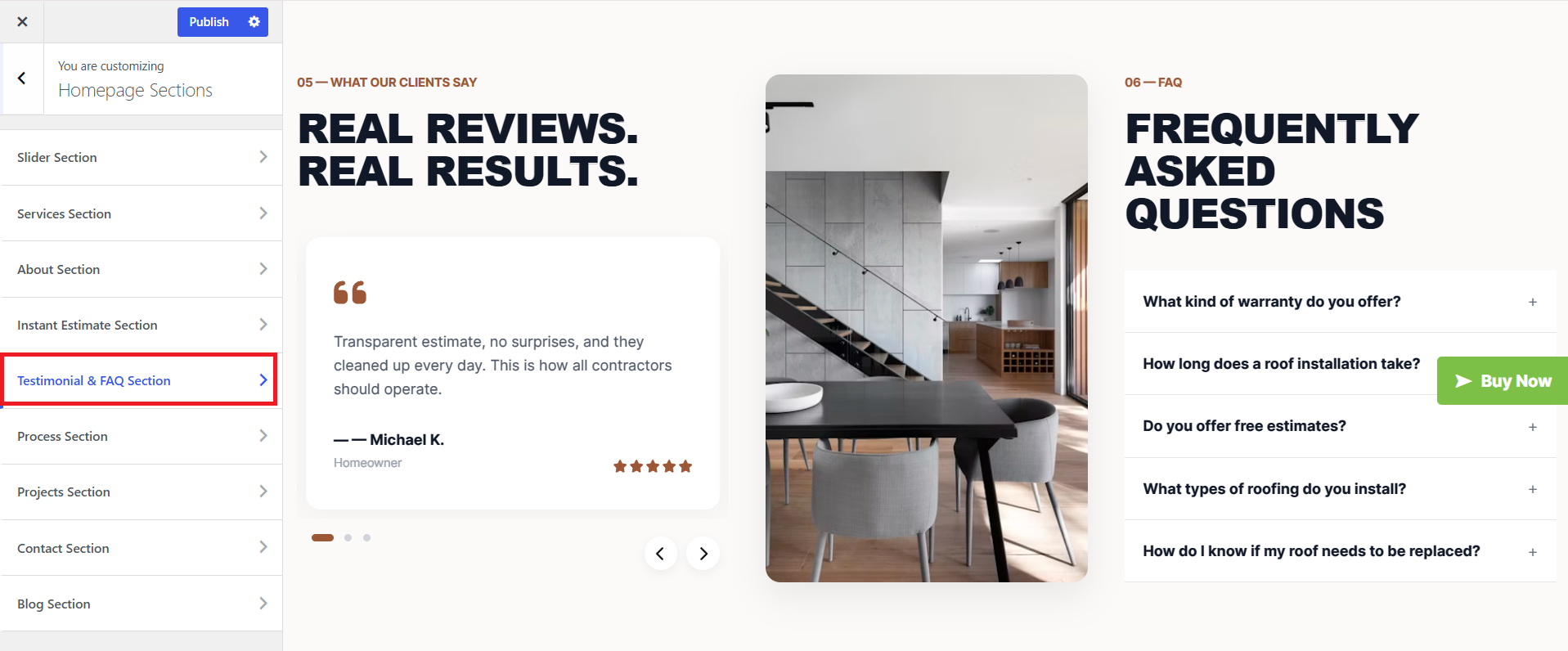
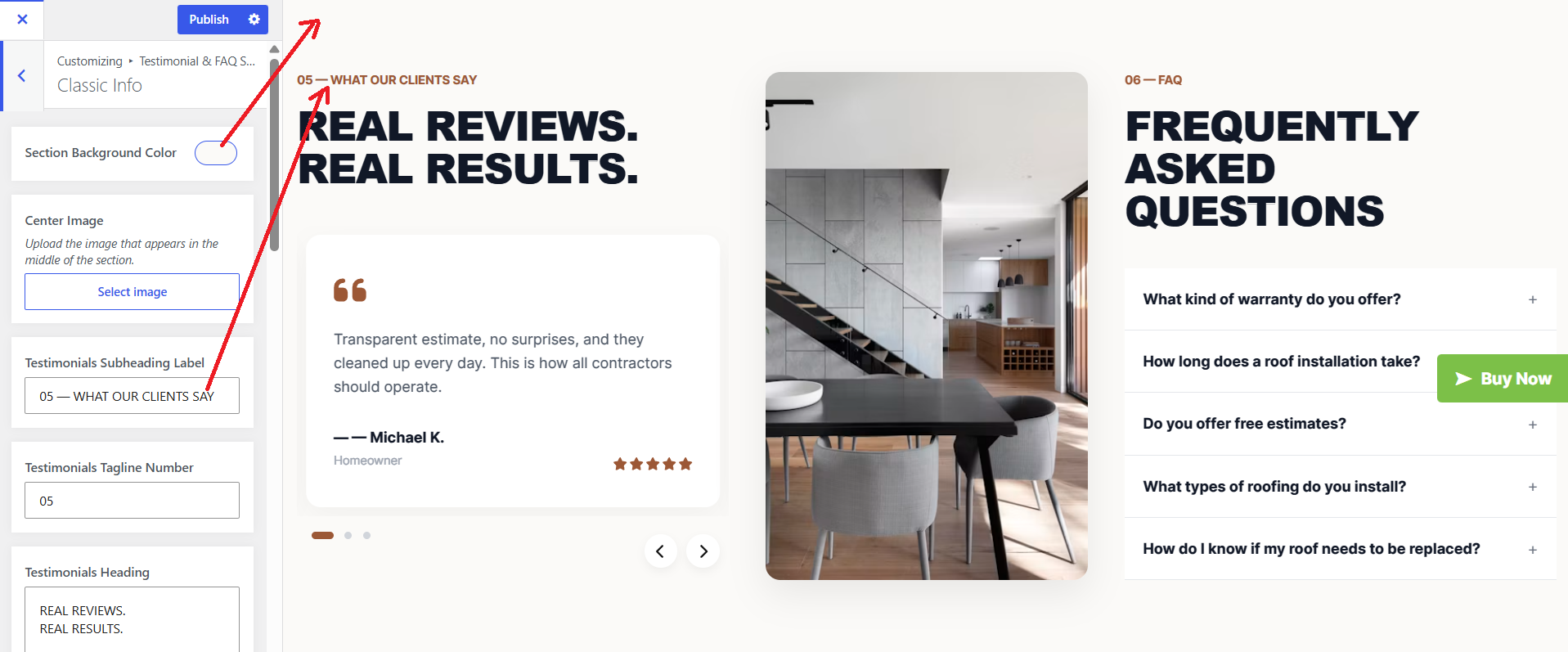
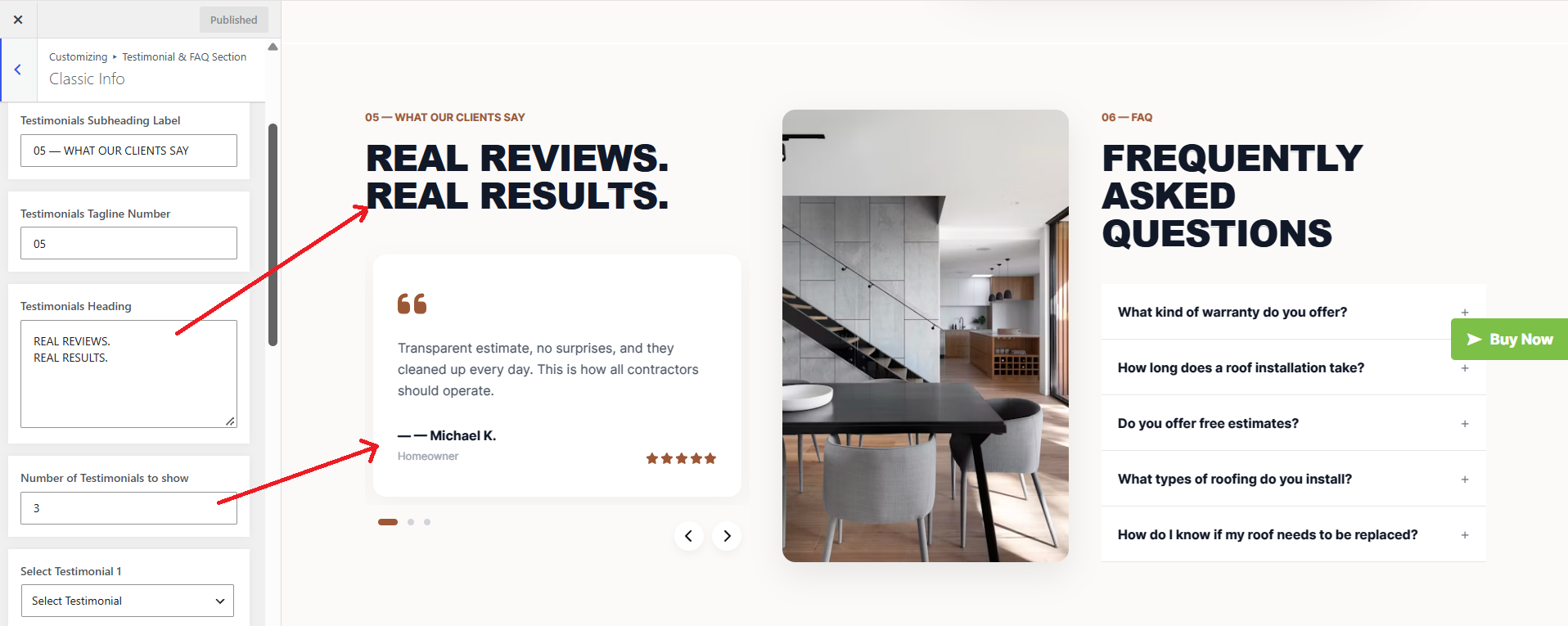
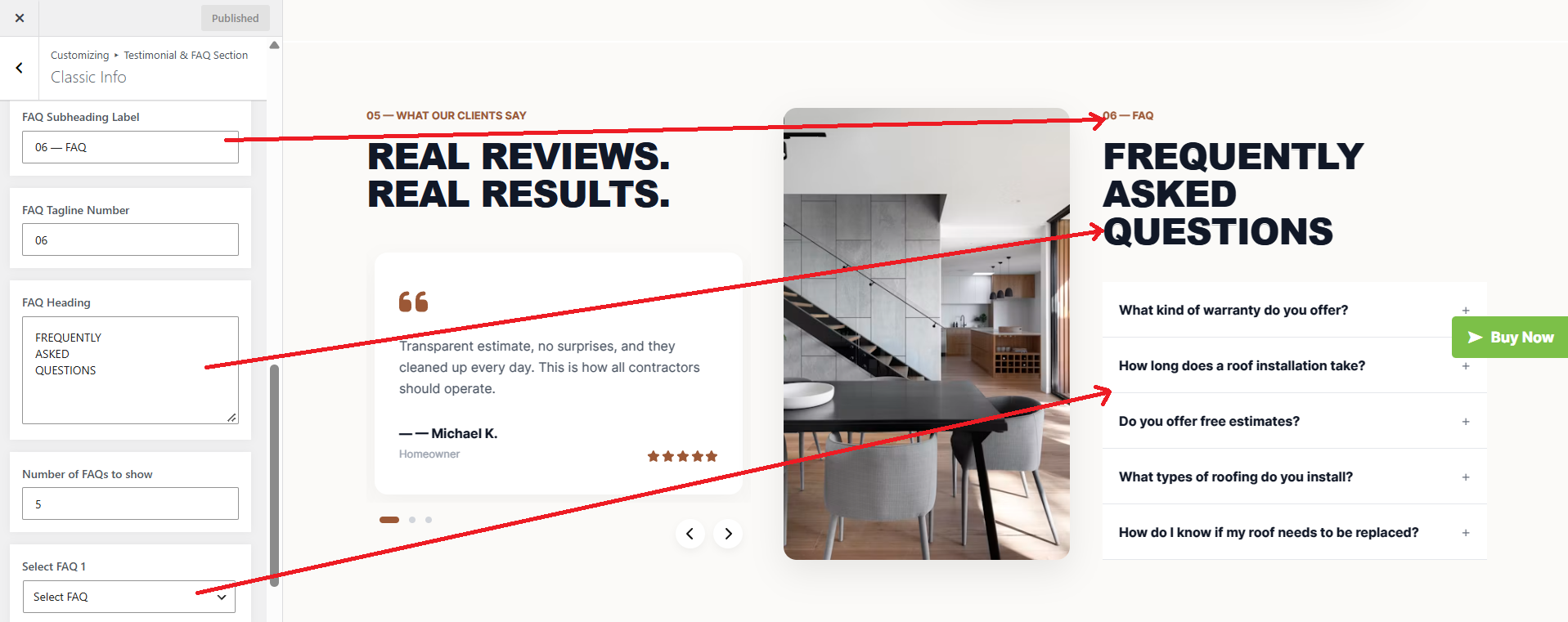
The following sections are included in the Testimonial & FAQ Section customization:
- Option to "Enable/Disable" the section
- Background color or background image
- Dynamic images
- Dynamic content
- Customizable font settings based on the content
- Process Section Setup
SELECT Customize Theme Settings Process Section under Appearance.
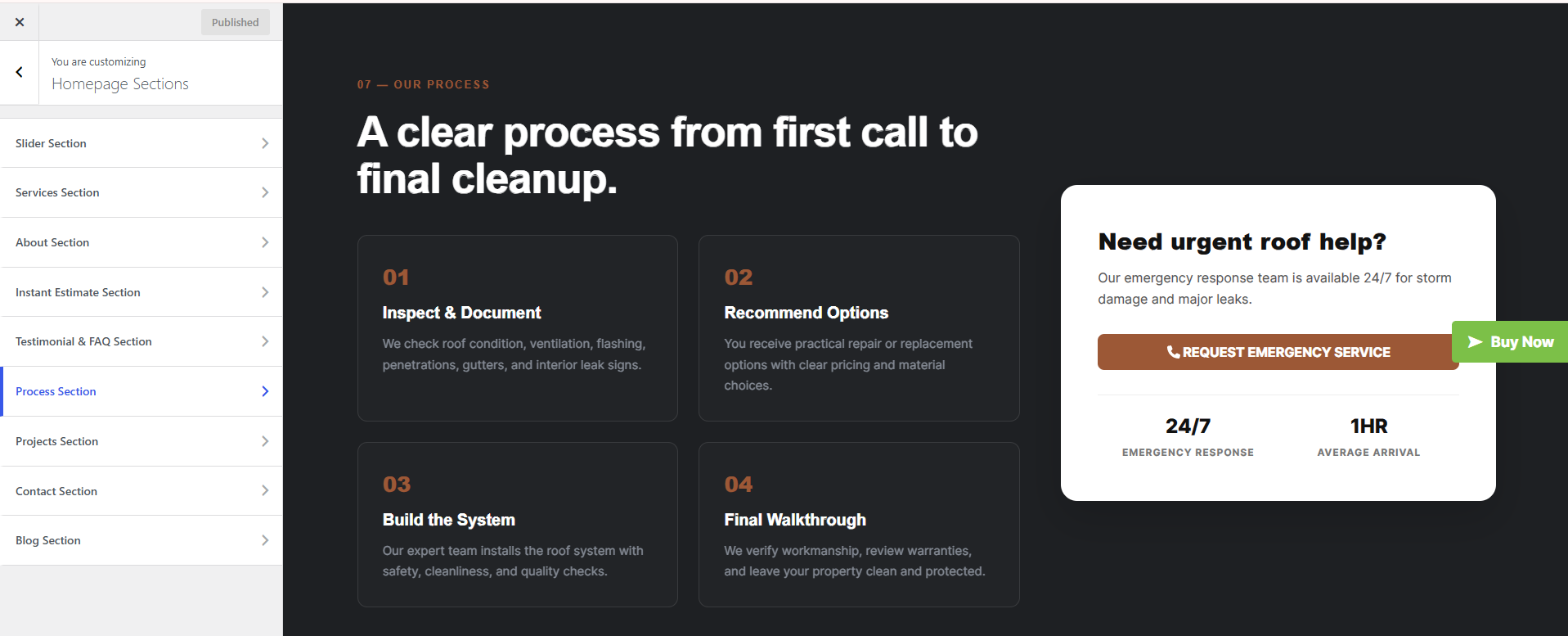
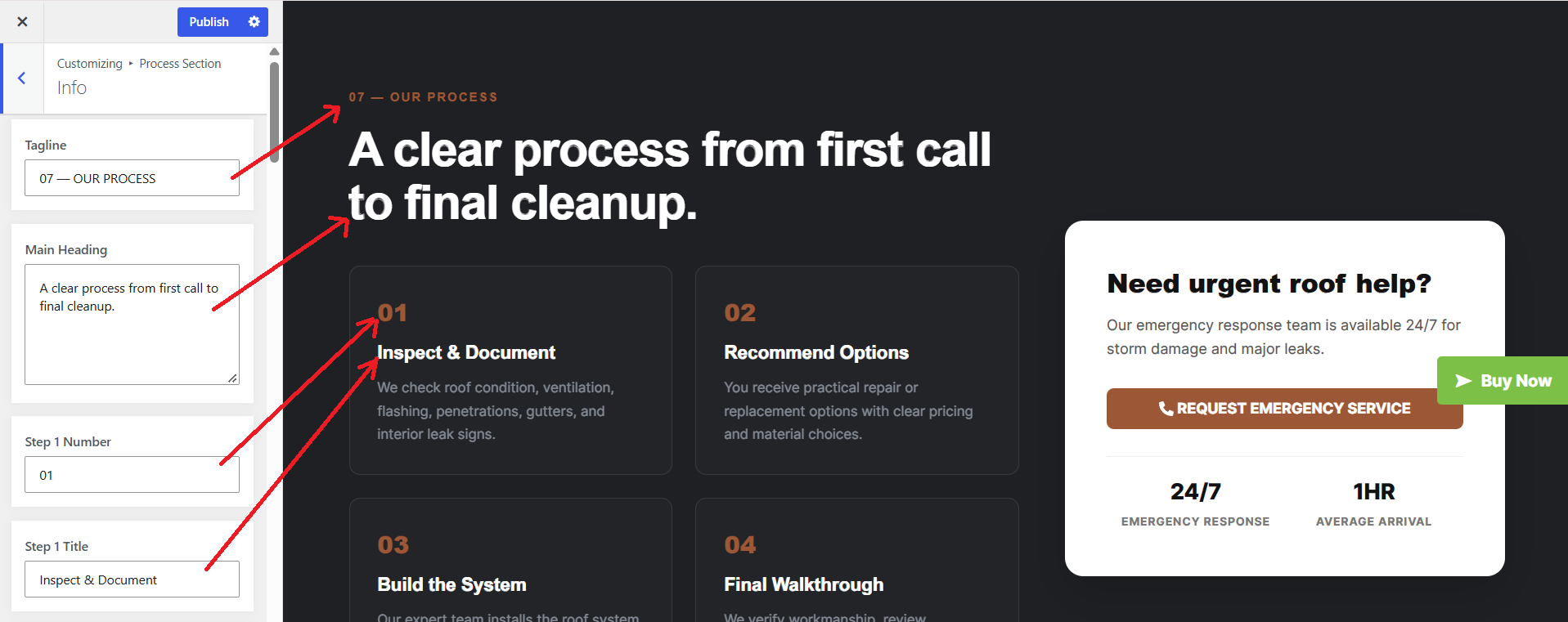
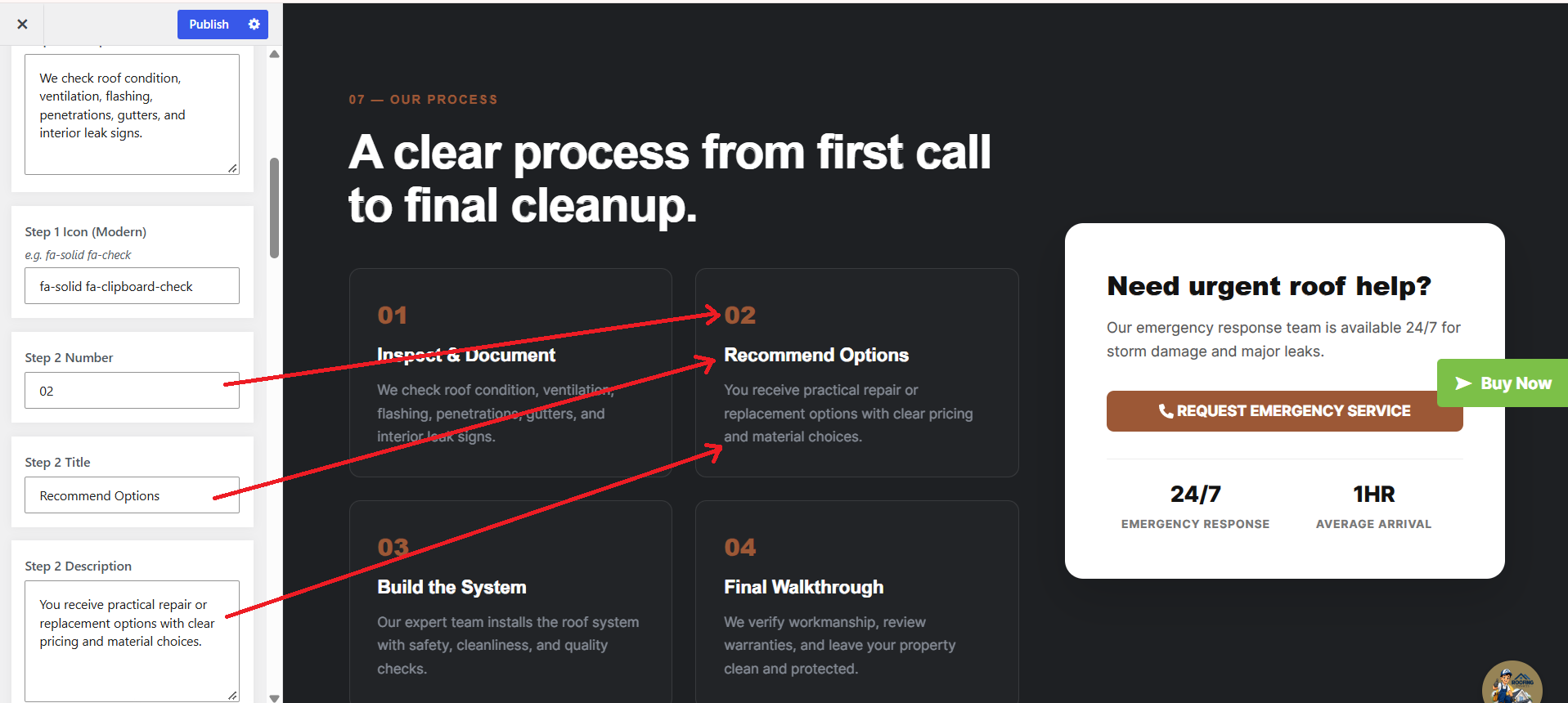
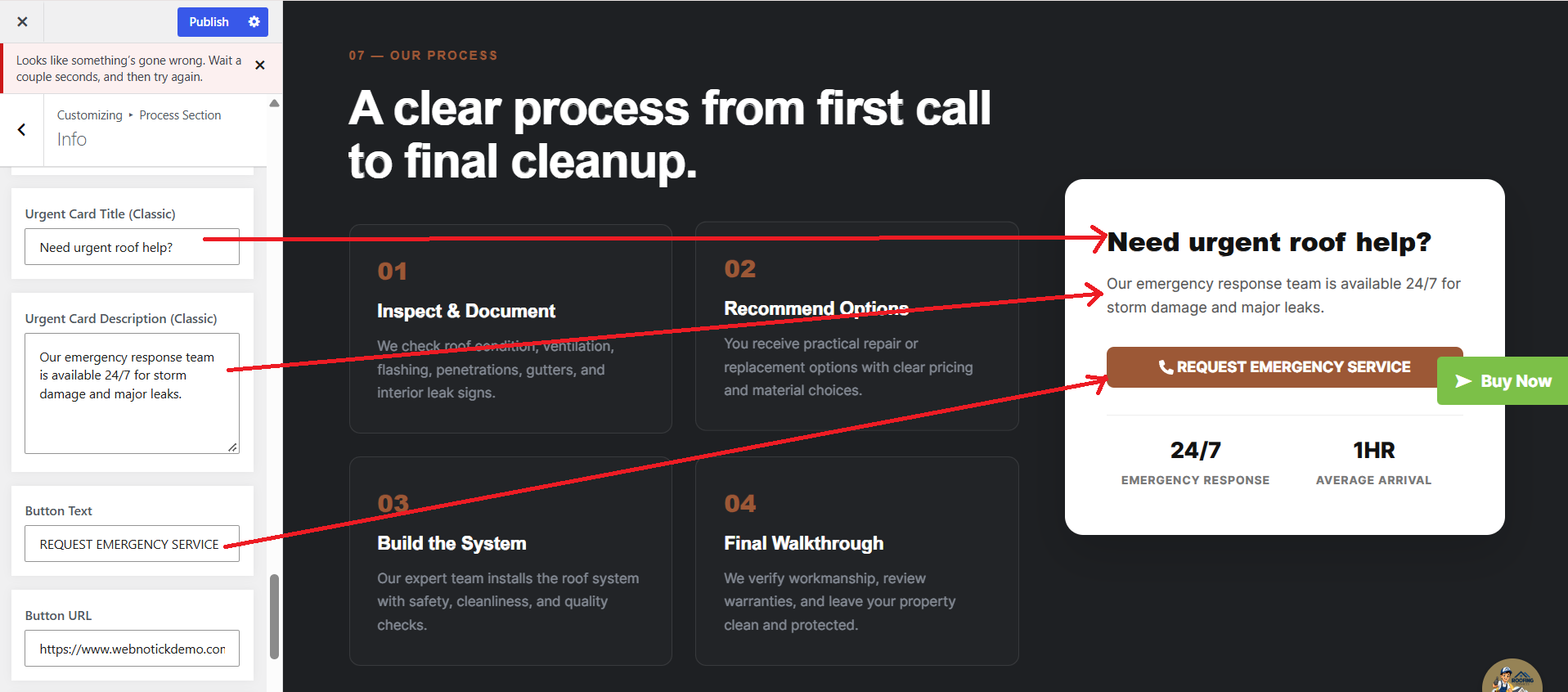
The following sections are included in the Process Section customization:
- Option to "Enable/Disable" the section
- Background color or background image
- Dynamic images
- Dynamic content
- Customizable font settings based on the content
- Contact Section Setup
SELECT Customize Theme Settings Contact Section under
Appearance.
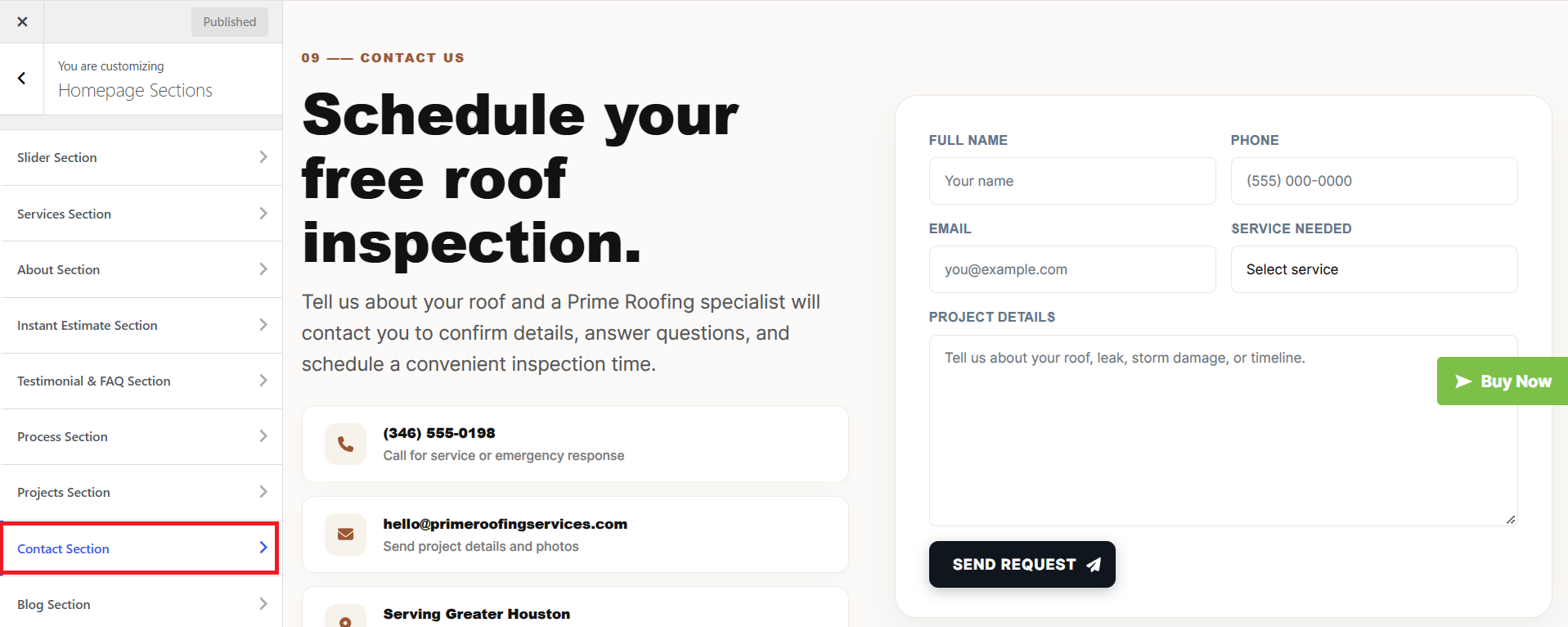
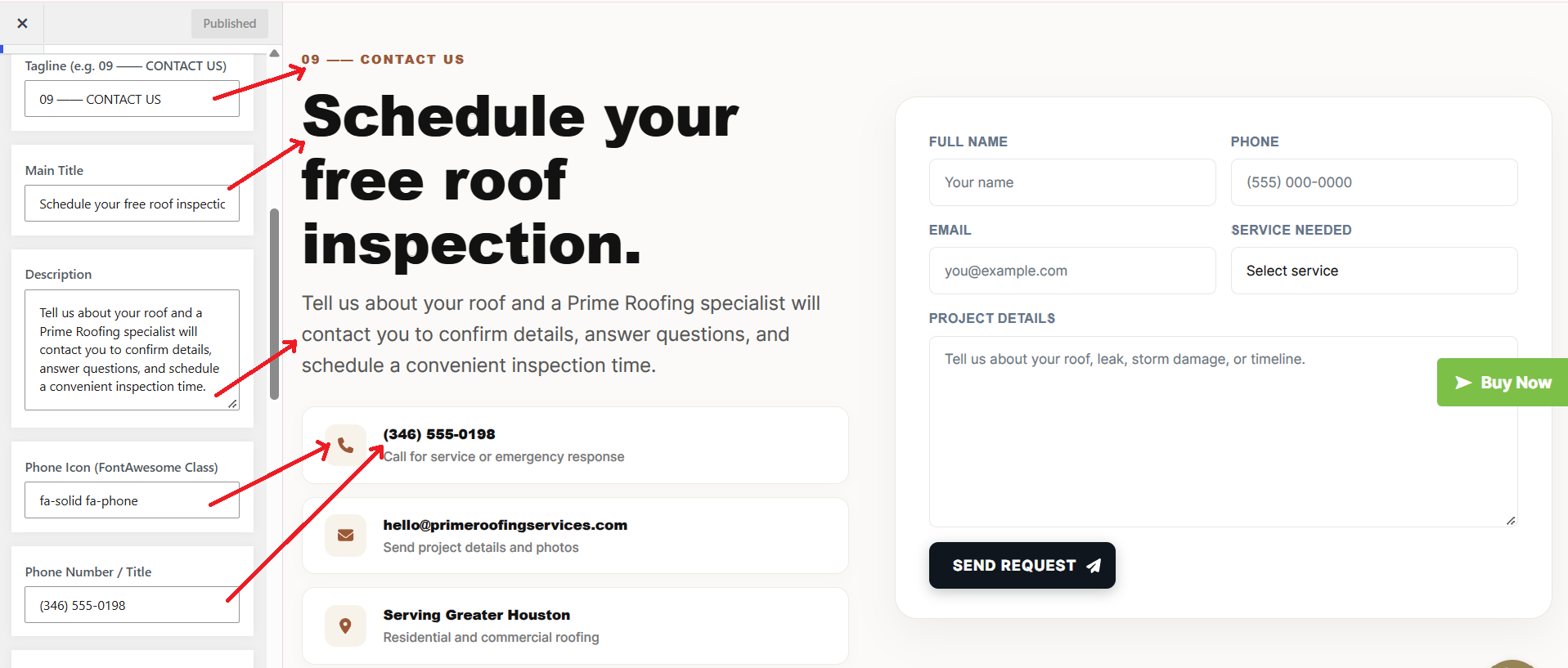
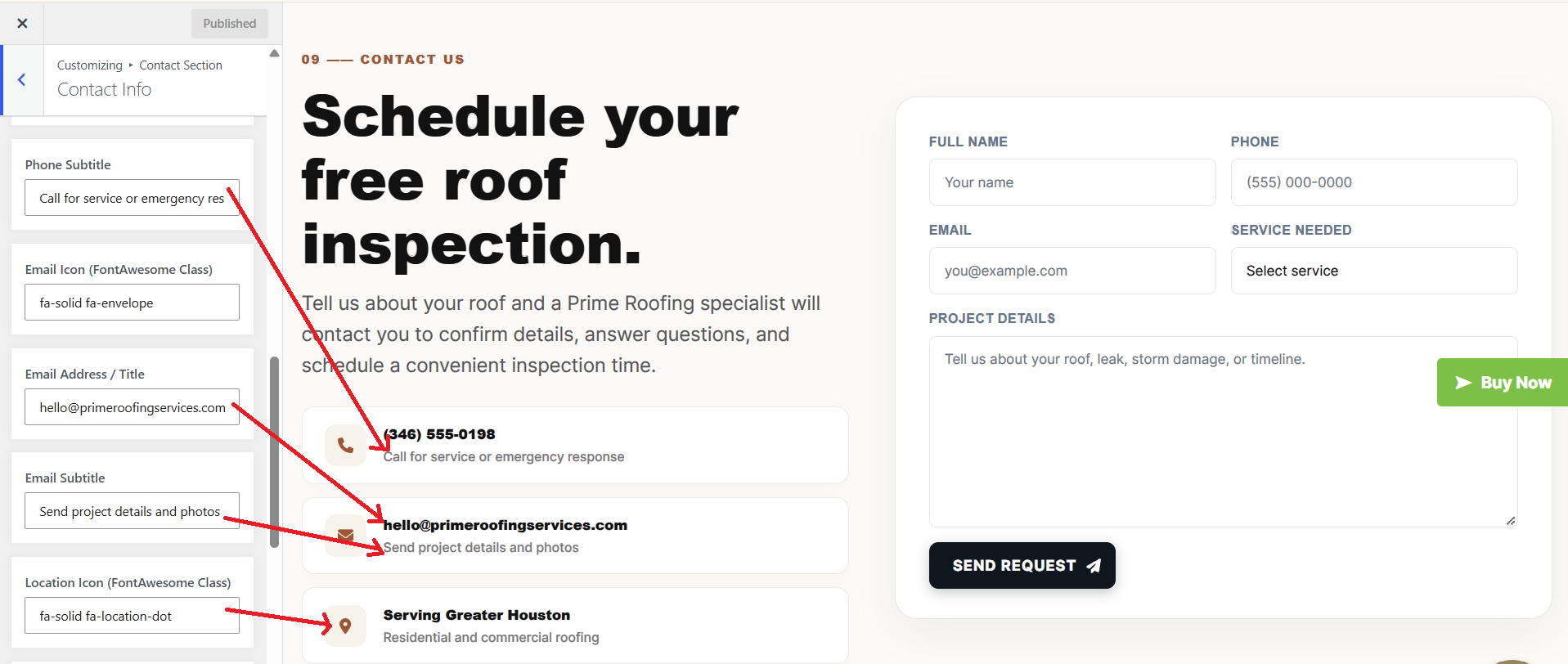
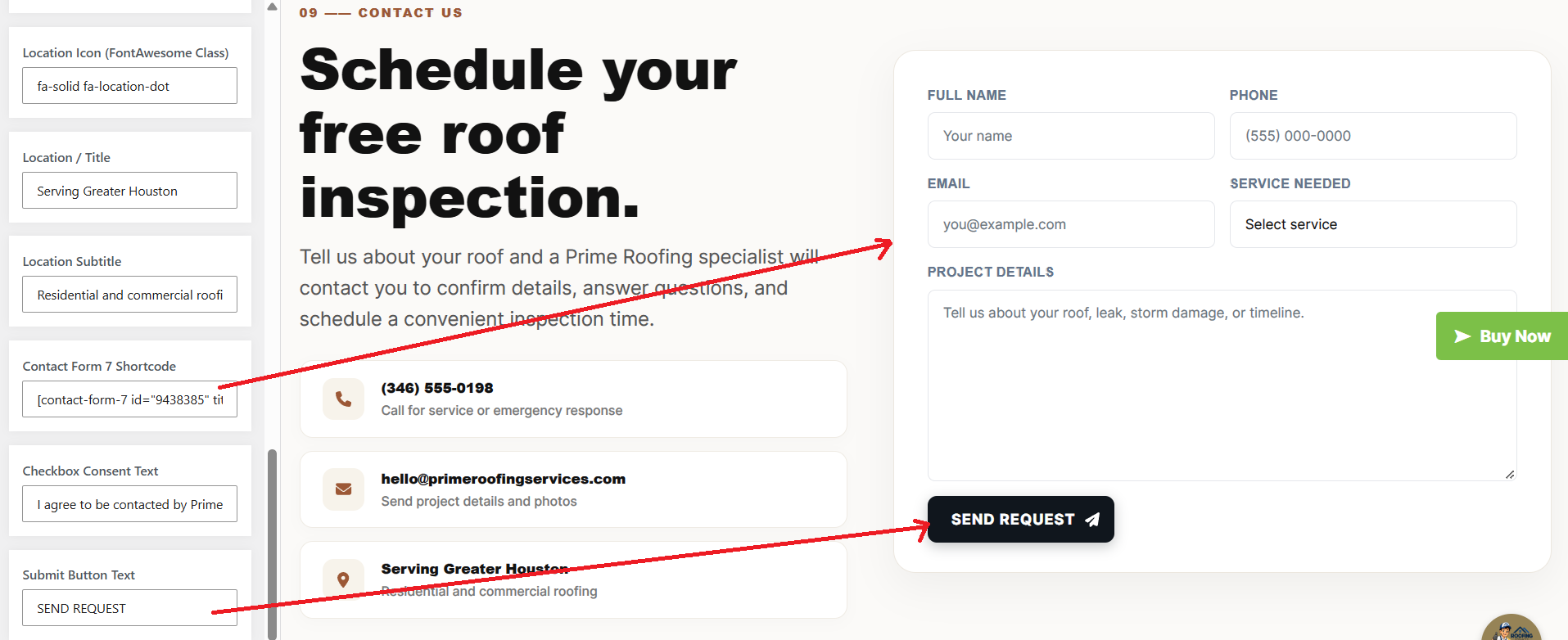
The following sections are included in the Contact Section customization:
- Option to "Enable/Disable" the section
- Background color or background image
- Dynamic images
- Dynamic content
- Customizable font settings based on the content
- Font and color settings available for the active state as well.
- Template & Sidebar For Pages
Page Template Options:
- Standard Template
- Default page template with a right sidebar.
- Full Width Page
- Page template with one column, without a sidebar.
- Left Sidebar on This Page
- Page template with a left sidebar.
- Right Sidebar of the Page
- Page template with a right sidebar.
Blog Template Options:
- Full-width Blog
- Blog template with one column, without a sidebar.
- Blog (Left Sidebar)
- Blog template with a left sidebar.
- Blog (Right Sidebar)
- Blog template with a right sidebar.
Contact Template:
- Default Contact template with no sidebar.
- Posts Section setup
SELECT Dashboard Theme Settings Posts Section under Appearance.
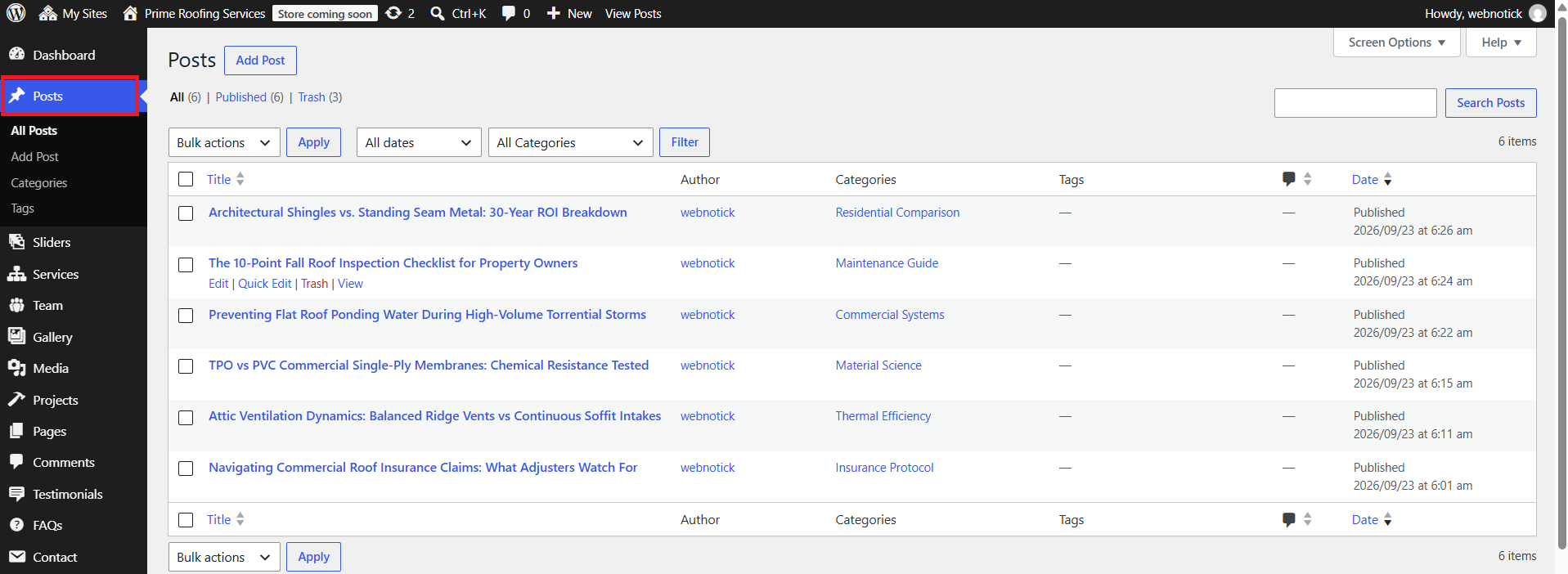
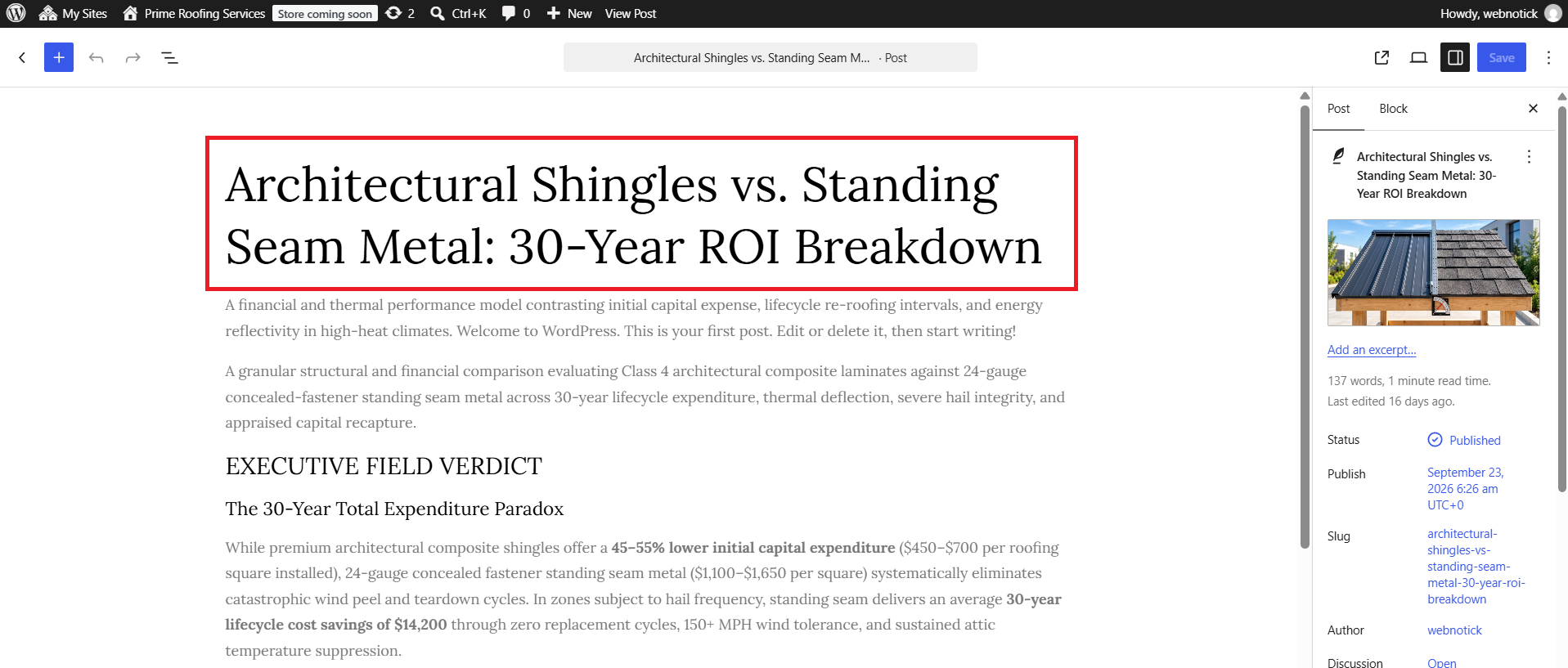
SELECT Customize Theme Settings BLOG Section under
Appearance.
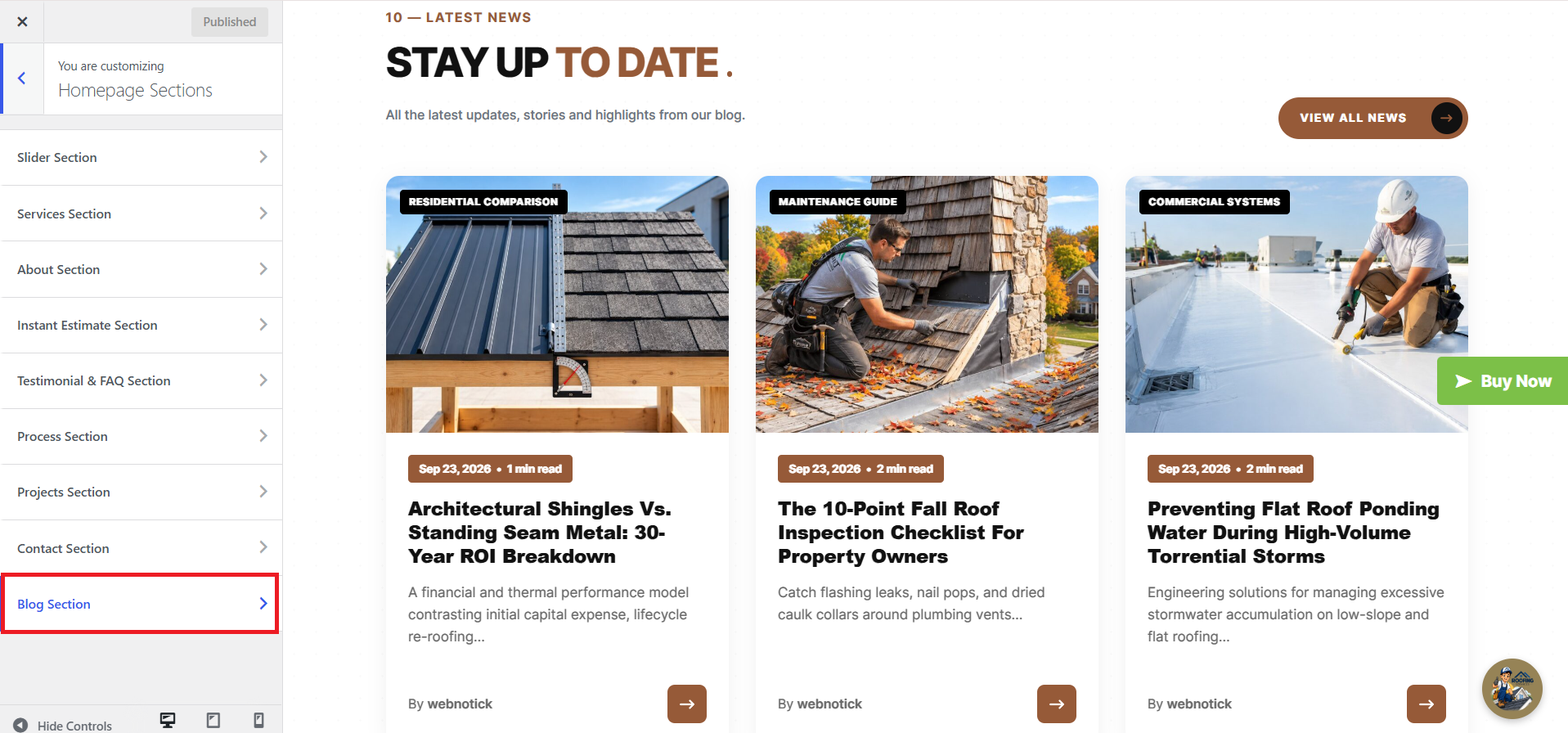
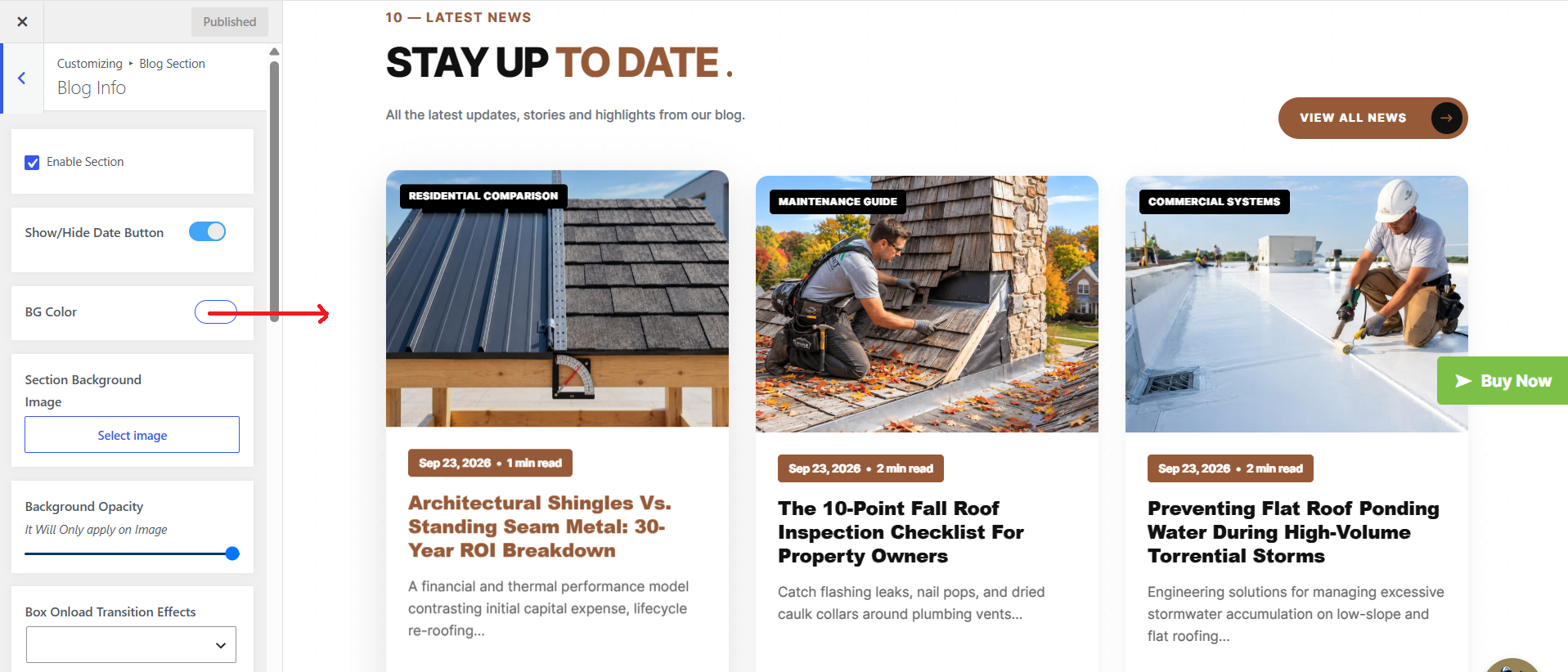
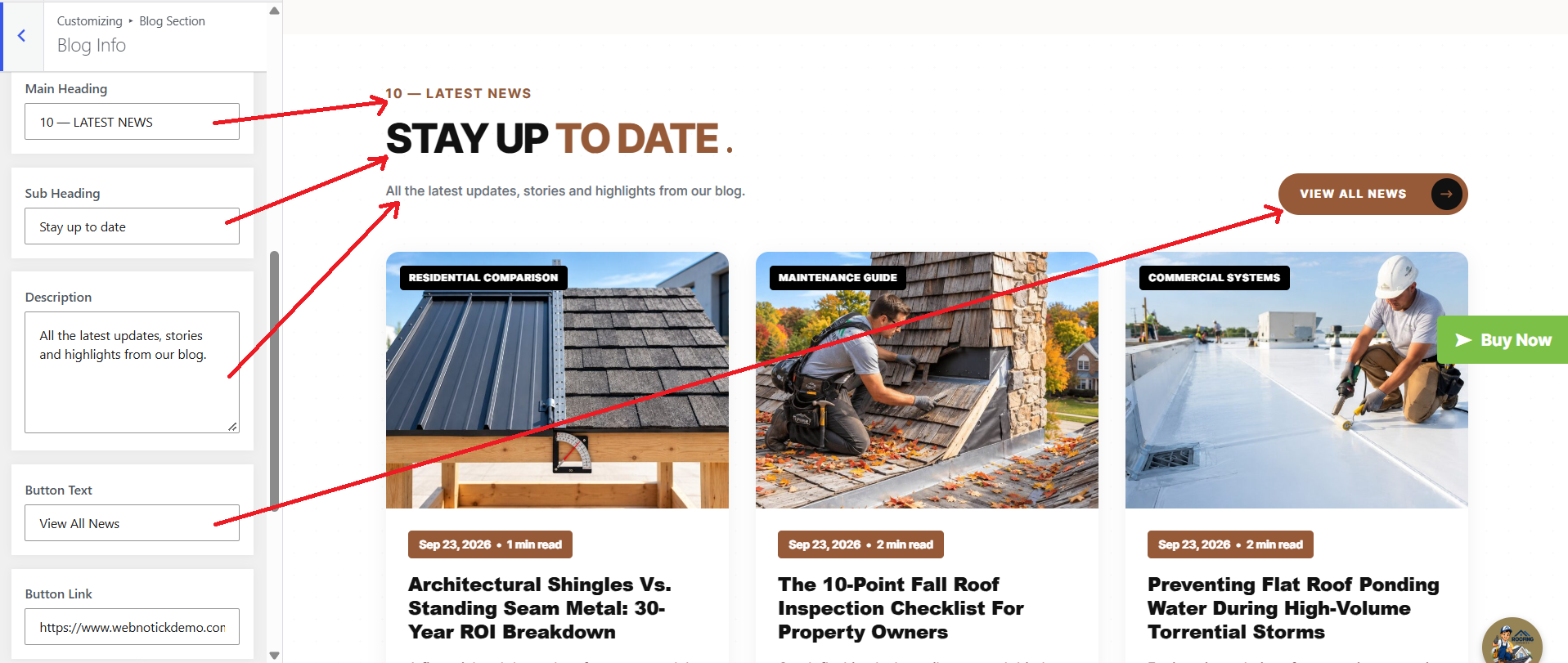
The following sections are included in the BLOG Section customization:
- Option to "Enable/Disable" the section
- Background color/background image settings
- Dynamic image options
- Dynamic content options
- Customizable font settings depending on the content
- Select Homepage
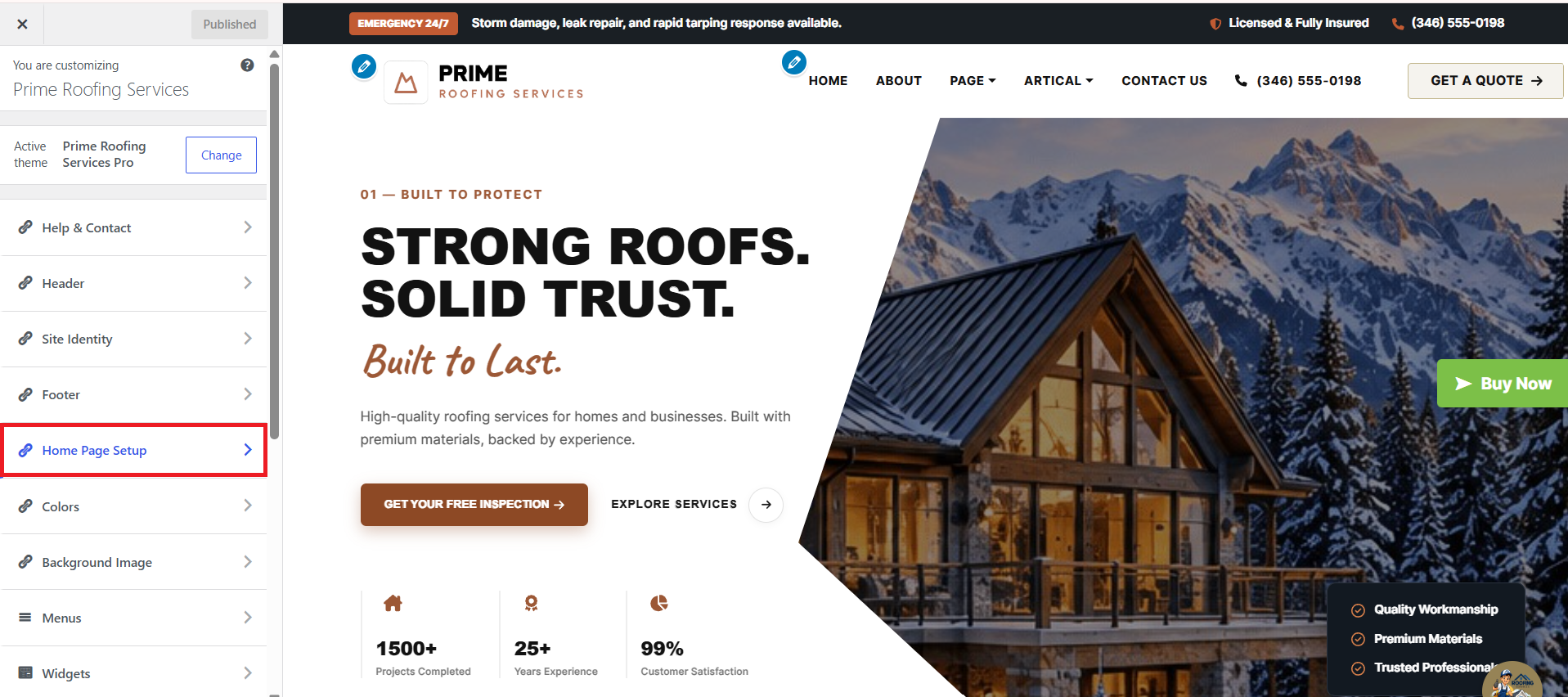
SELECT Customize Theme Settings Home Page
Settings
under Appearance.
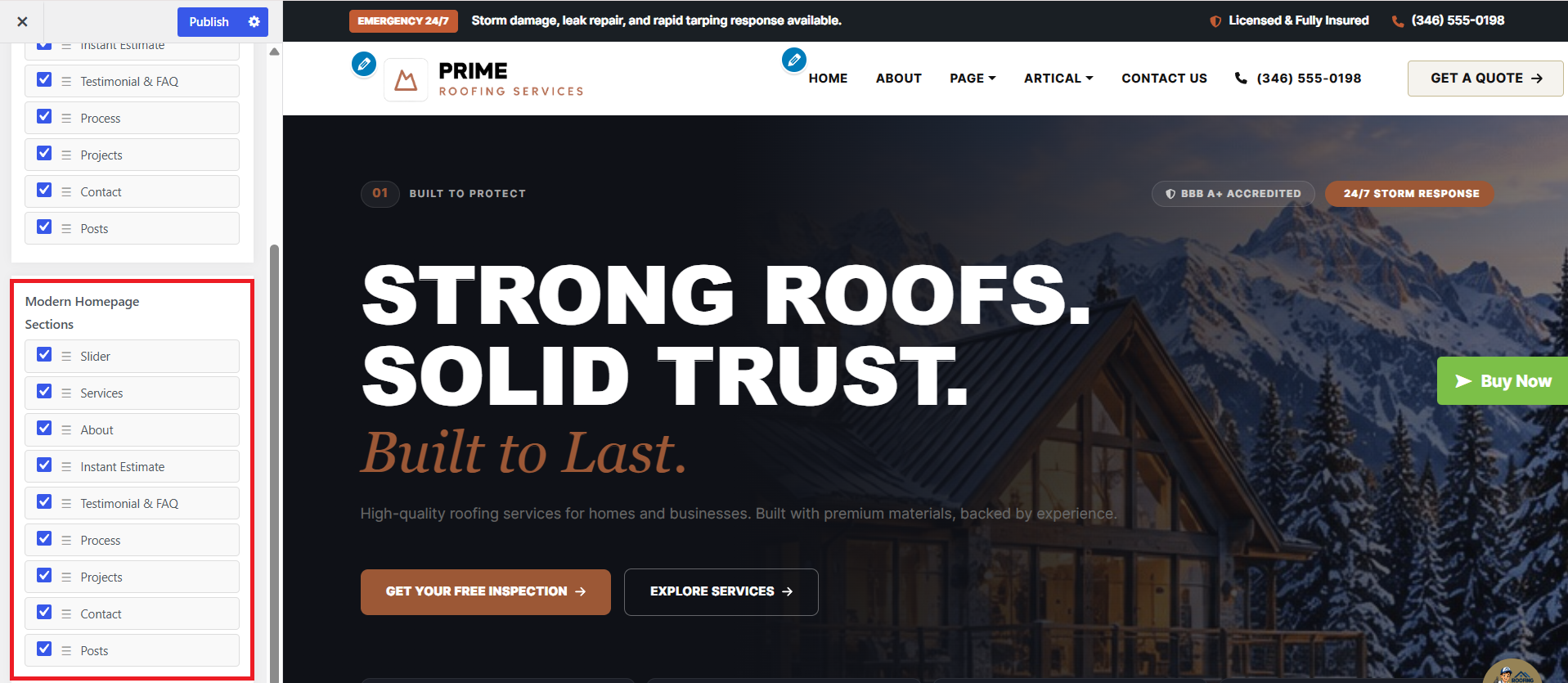
Choose between Classic Homepage or Modern Homepage layout design.
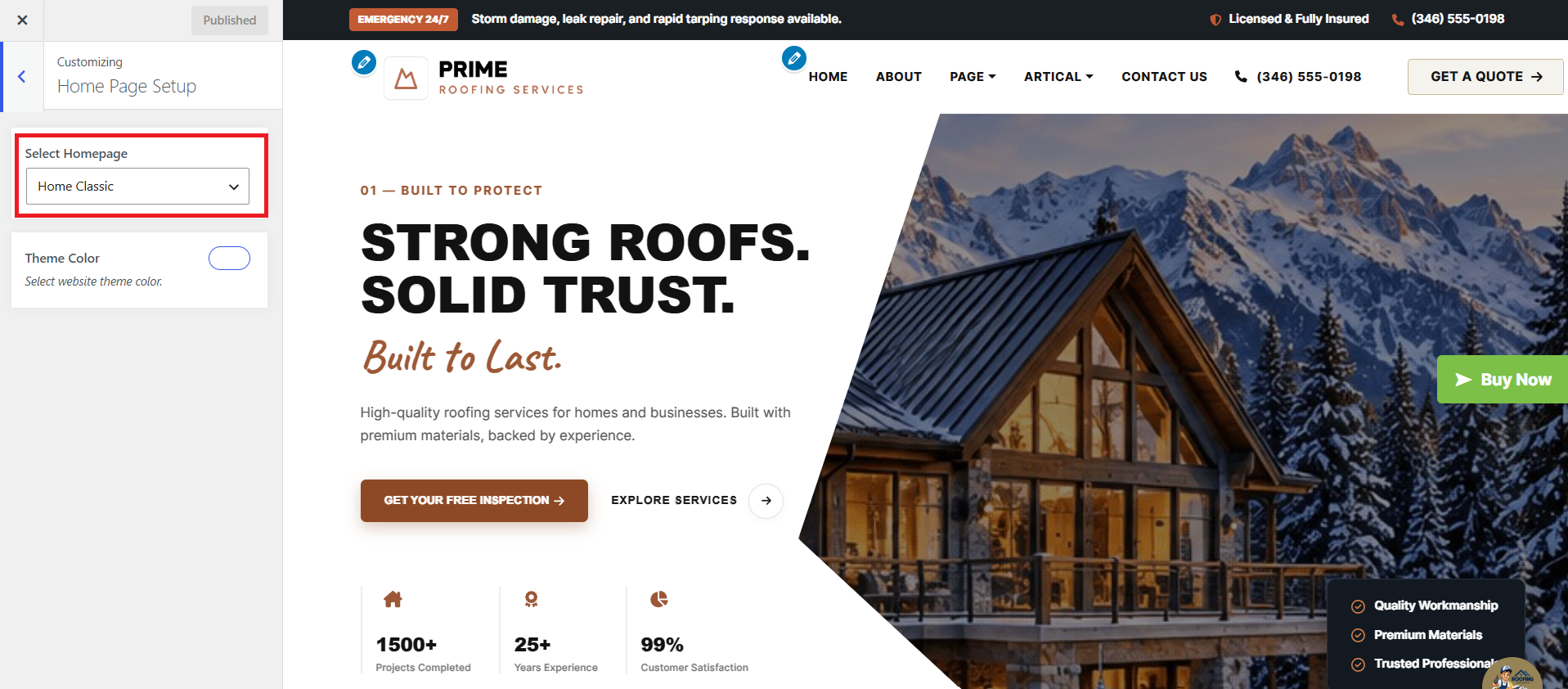
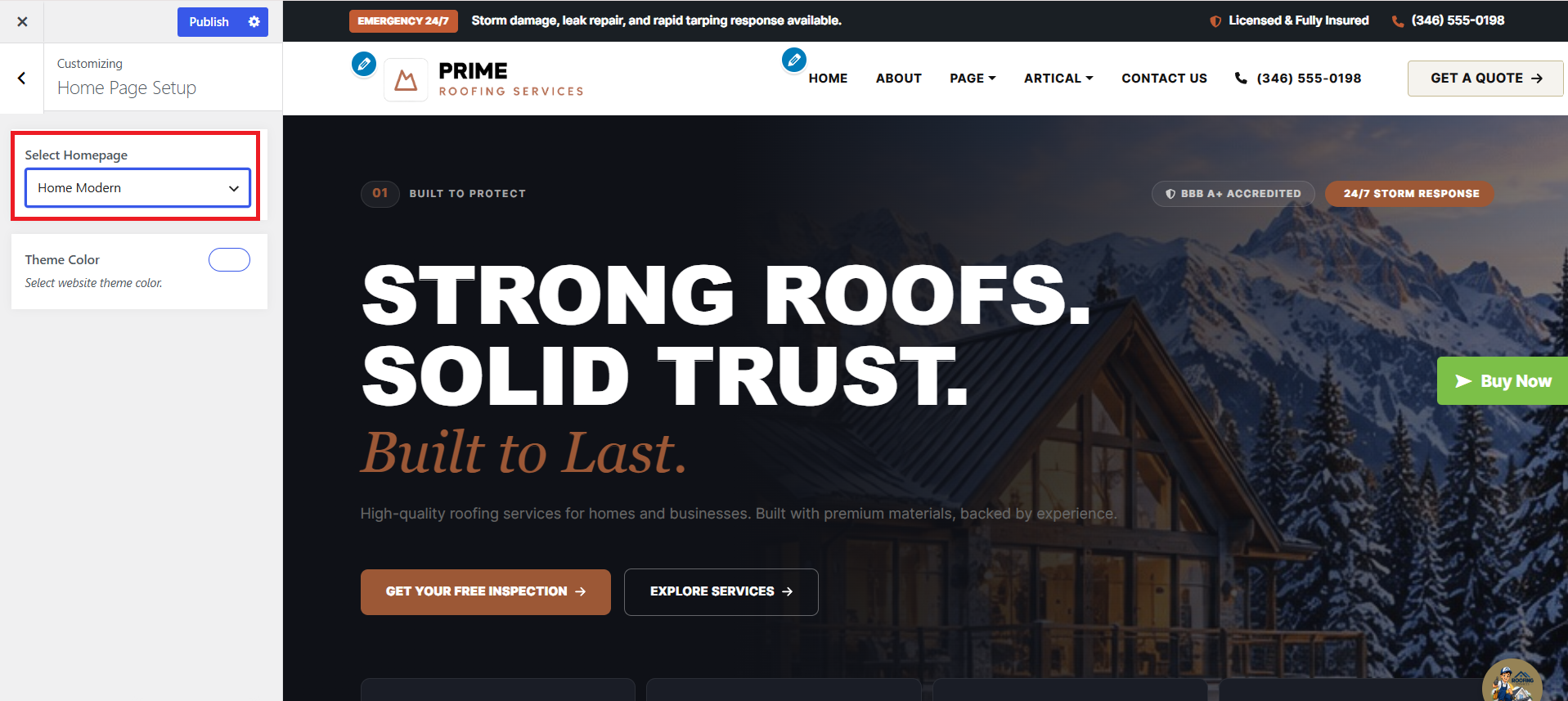
- Classic & Modern Sections
SELECT Customize Theme Settings
Section Order
under Appearance.
Customize homepage layout with flexible section ordering.
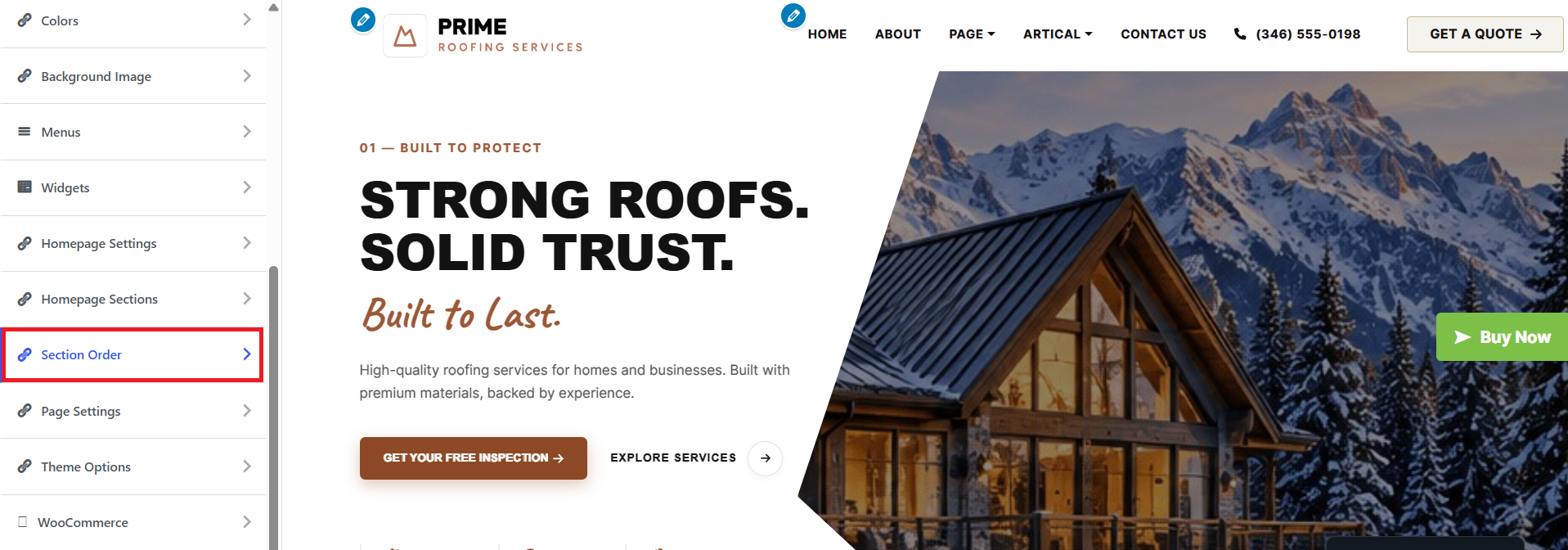
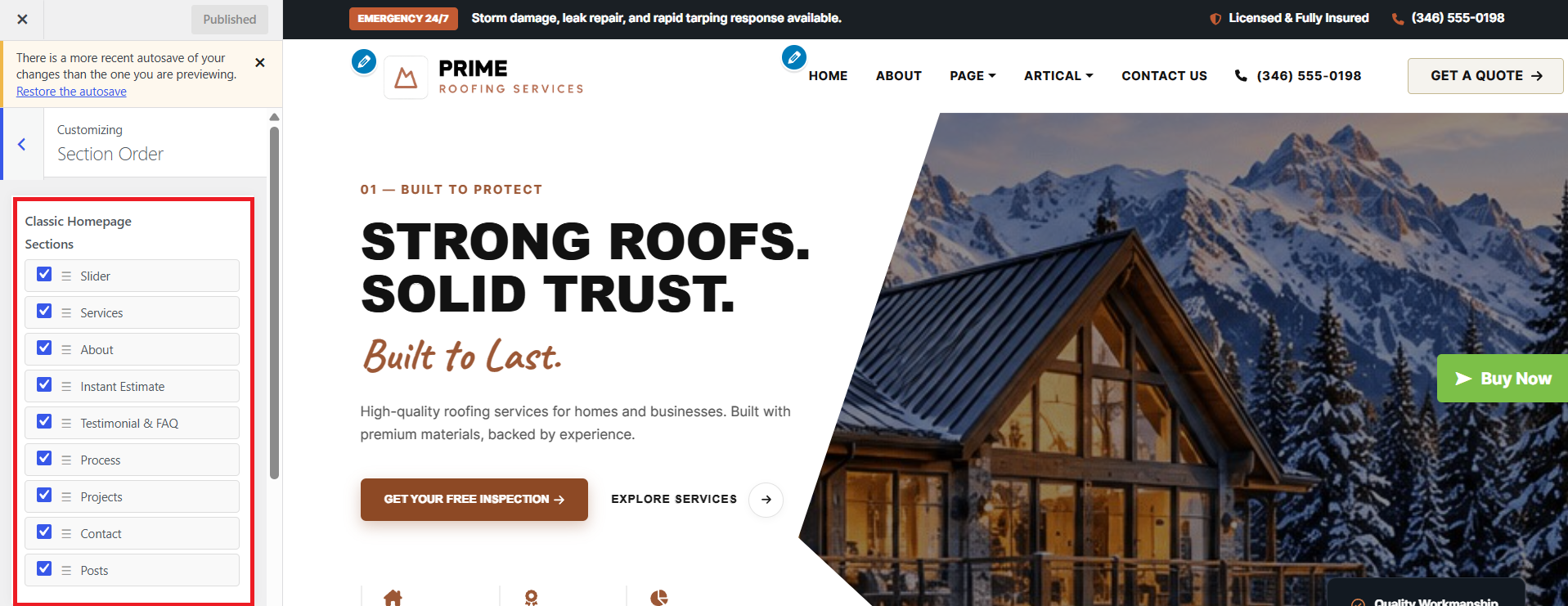
- Section Order
SELECT Customize Theme Settings Section
Order
under Appearance.
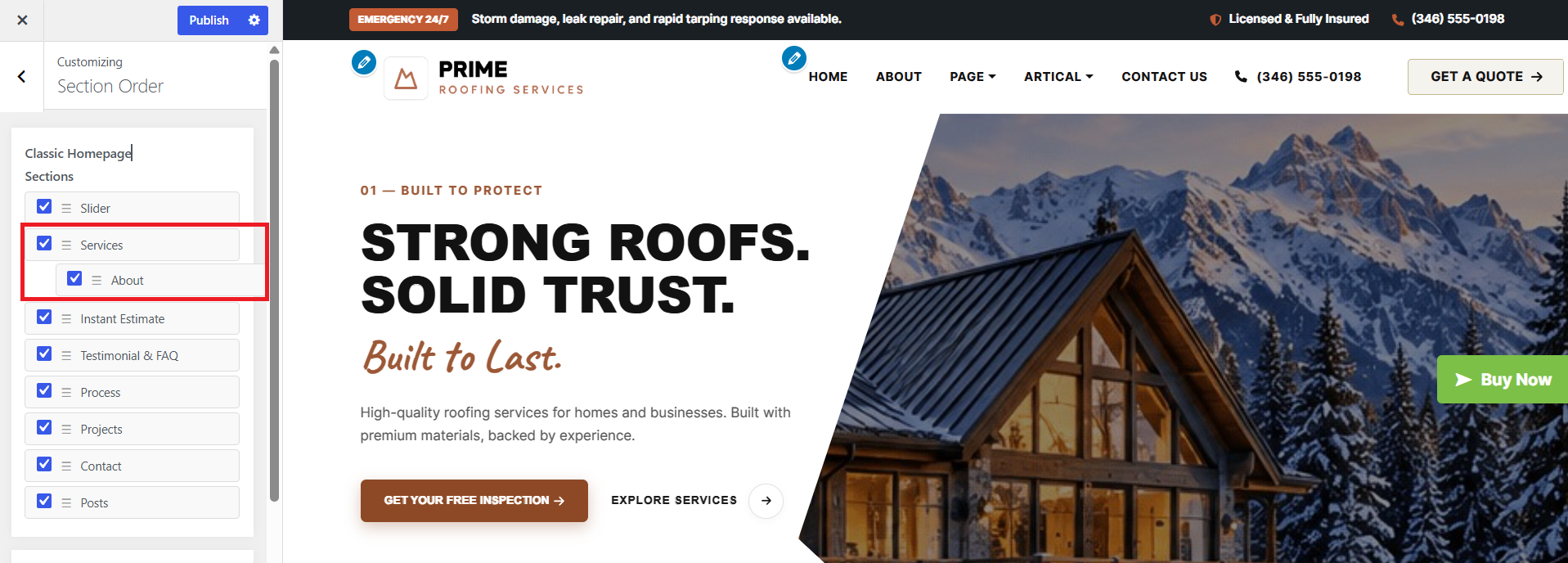
Drag and drop homepage sections to reorder them easily.

- Enable / Disable Sections
SELECT Customize Theme Settings Section
Order
under Appearance.
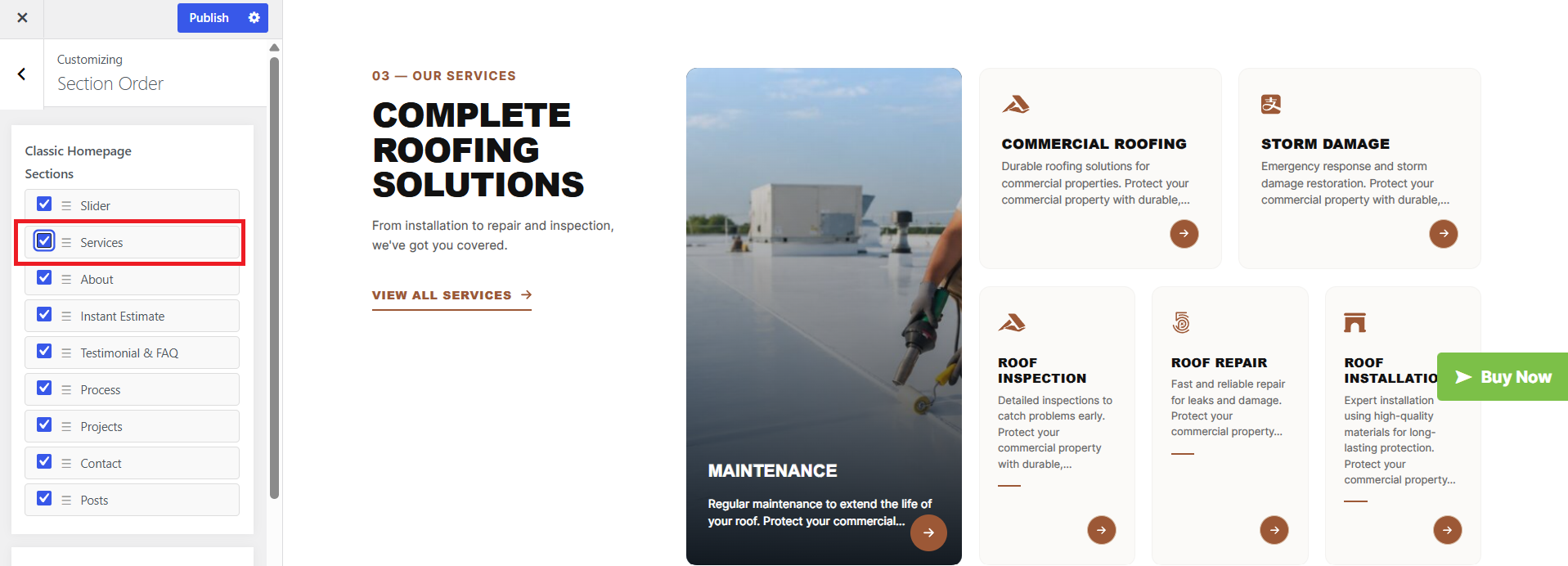
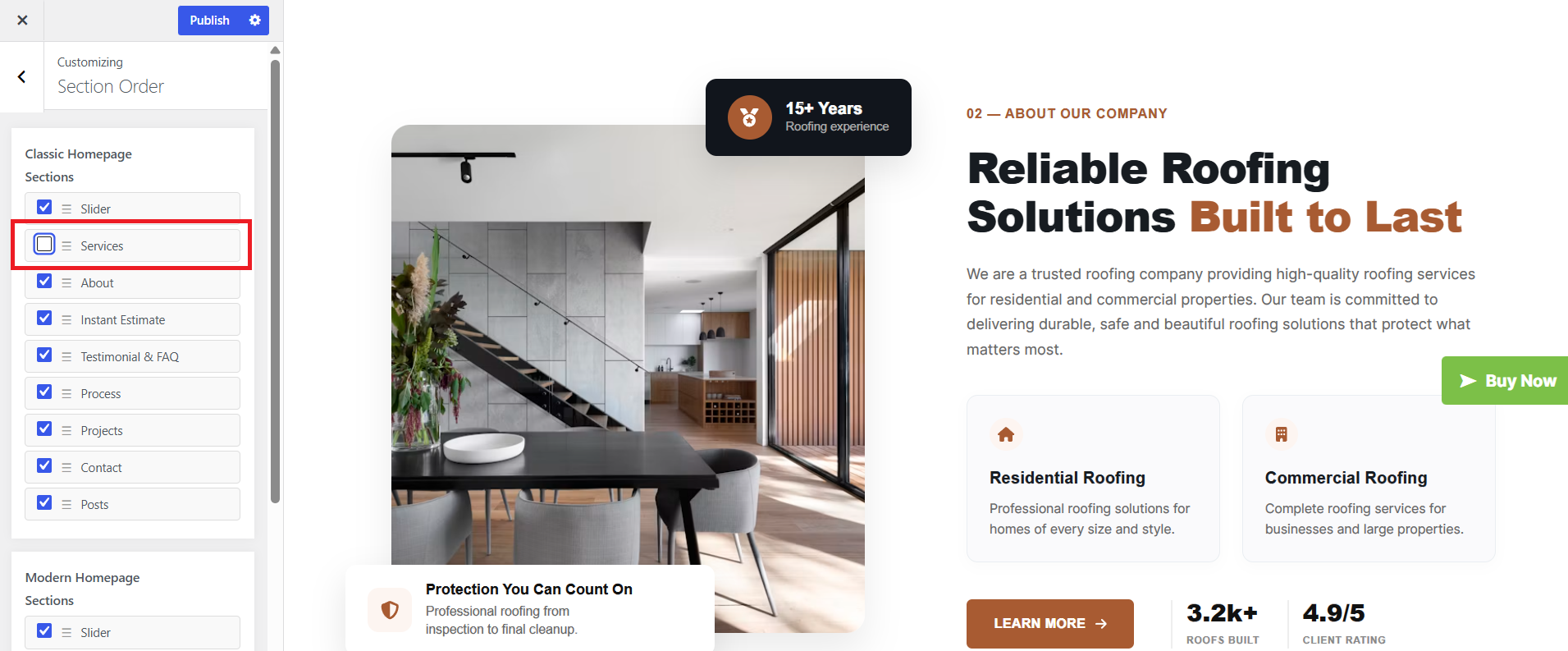
Show or hide homepage sections instantly using checkboxes.
- Shortcodes Information
A shortcode is a useful tool for creating content.
Shortcodes are easy to use.
For more information, refer to this link: Click here.
First and foremost, ensure that the editing mode is set to Visual.
All available shortcodes are divided into the following groups:
- Our Gallery
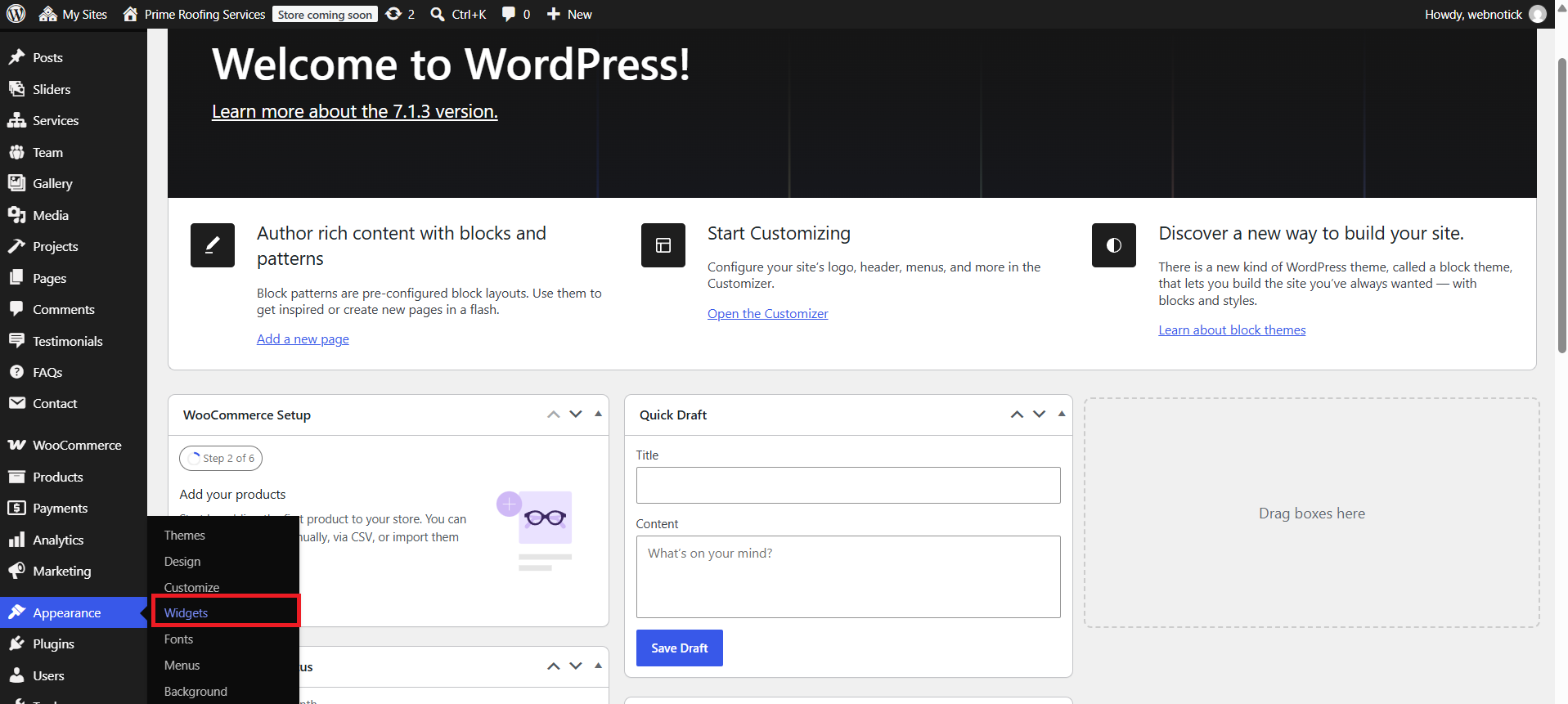
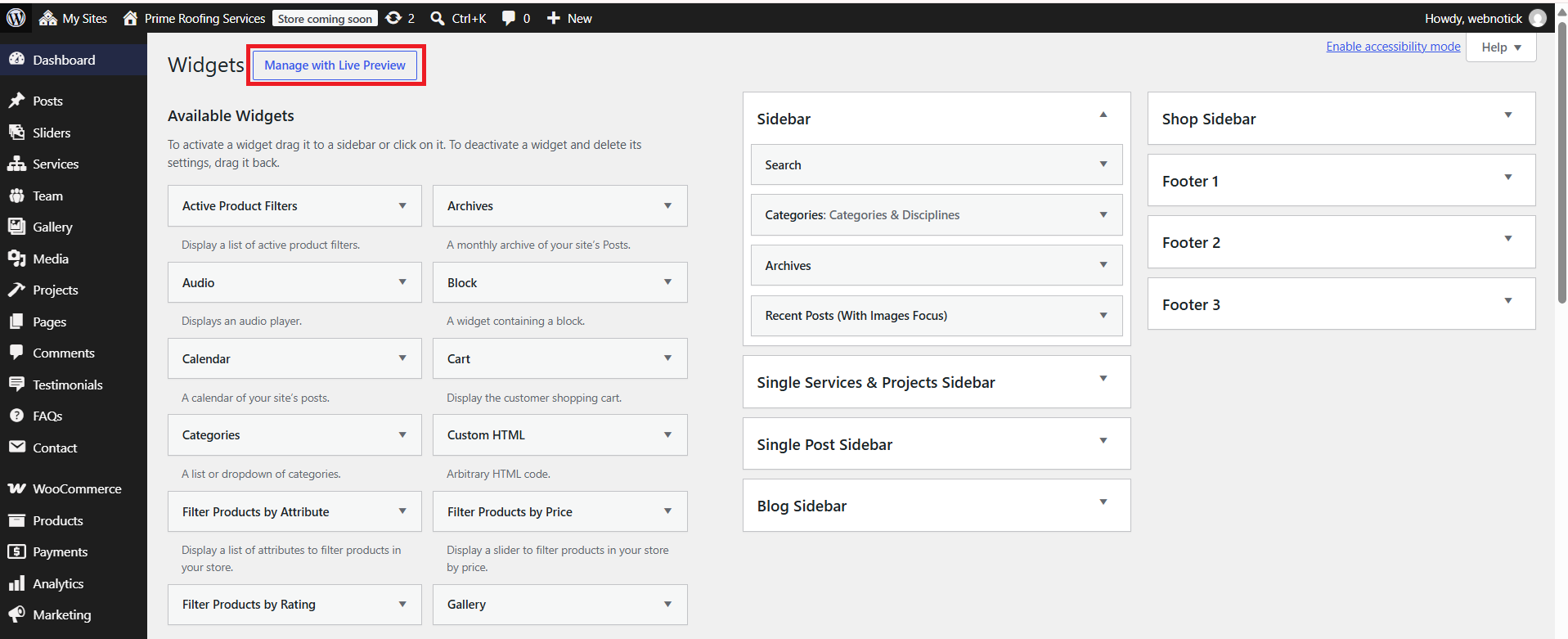
- Custom Widgets Information
- Customer Support
Welcome to the Support Section! We are here to assist you in making the most out of our WordPress theme. Whether you're facing issues, need guidance on customization, or have general questions, we're here to help.
How to Get Support
- Documentation:
Before reaching out for support, we recommend consulting our comprehensive documentation. It covers installation instructions, theme features, customization options, and troubleshooting tips.
- Support Forum:
If you haven't found a solution in the documentation or knowledge base, our support forum is the next step. You can post your questions, issues, or feature requests in the forum, and our support team, as well as the community, will assist you. Just click on the link below.
For Assistance at Any Time, Feel Free to Ask: Click here